Quick Note
TL;DR
| What changed | What it means |
|---|---|
| Quick Note hotkey | Press Control-Shift-Space in any app, speak, and the text lands where you chose. |
| Four capture destinations | Captures land in the in-app inbox, or in a pinned, daily or weekly note. |
| Quick notes viewer | A two-pane window lists captures by day, with Send to vault, Copy, Reveal and Delete. |
| Optional AI cleanup | With AI cleanup on, Oris adds punctuation and strips filler words using your summarization provider. |
| Toggle or hold activation | Press once to start and again to stop, or hold the keys while you speak. |
| Settings save automatically | Changes save as you make them, with no Save button. |
| Bug fixes | General fixes throughout the app. |
Meeting notes work fine for the conversations you block off on a calendar. The problem is the other kind — the thought that surfaces while you’re making coffee, the connection you spot mid-commute, the thing you need to tell yourself that exists for about forty seconds before the next thing takes over.
This build ships Quick Note. Press Control-Shift-Space from anywhere on your Mac, say the thing, and the transcribed text lands where you told it to. No window to open. No meeting in progress.
The loop
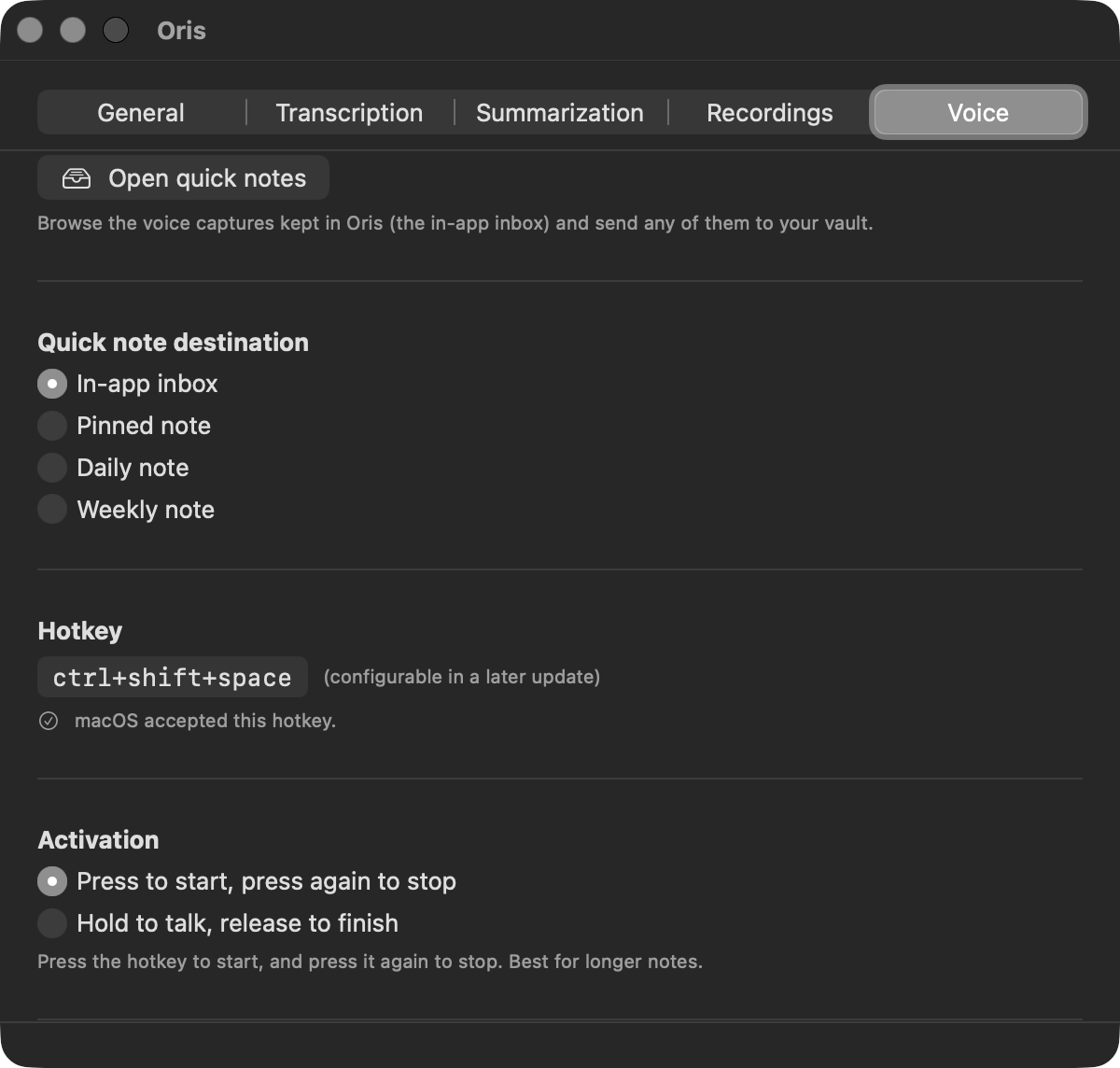
The global shortcut (default ⌃⇧Space) works from any app. Two activation modes, set once in settings.
- Toggle: press once to start, press again to stop. Good for a thought you need to work through.
- Hold: hold while you speak, release when you finish. Better for quick one-liners.
You pick the one that suits how you work, and it stays until you change it.
Four destinations
Where a capture lands is set in settings.
- In-app inbox (default): captures wait in Oris until you’re ready to route them.
- Pinned note: a specific vault note you name; every capture appends there.
- Daily note: Oris writes to a file for today in a folder you point it at.
- Weekly note: same idea, one file per week.
The pinned-note option has one edge case. If the note you named doesn’t exist, the capture falls back to the in-app inbox. Every destination failure falls back there. If the in-app write itself fails (full disk, wrong permissions), Oris shows a persistent message with the name of the audio file it kept. It does not fail silently.
Reading and routing
Captures in the inbox show up in a two-pane window inside Oris. The left side lists captures grouped by day; the right shows the full text of whichever one you select.
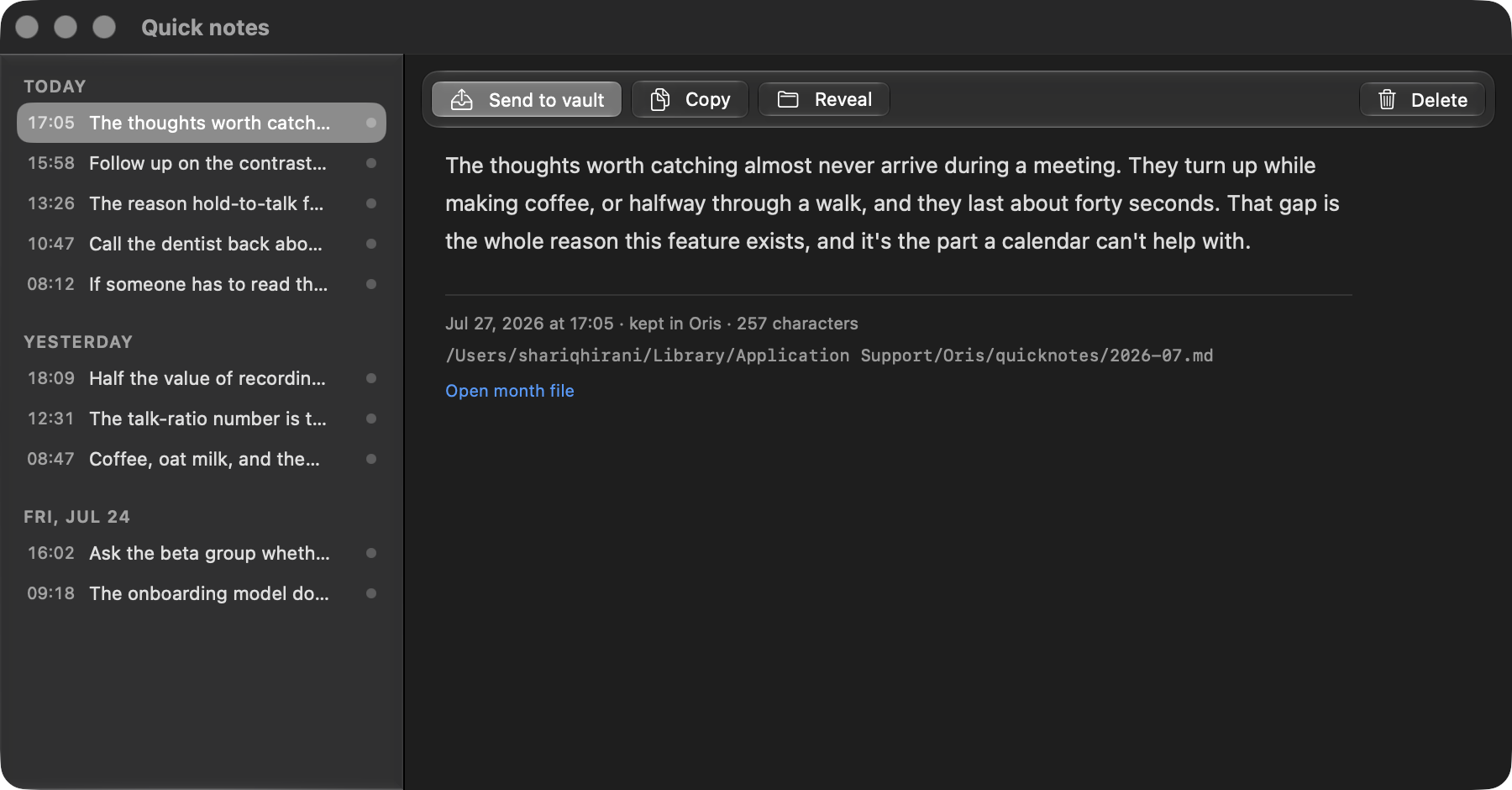
From there you can Send to vault, Copy, Reveal, or Delete. Send to vault promotes the capture into Markdown. Where it lands depends on your destination setting: a pinned, daily, or weekly vault note if you’ve configured one, or today’s daily quick note if you’re on the default in-app inbox. Once it’s there, it’s an ordinary note you rework in Obsidian like anything else; the button becomes ‘Open in Obsidian.’ The in-app copy stays.
Oris holds what you said, you read it when you’re ready, you send it where it belongs. The vault is where the work happens.
Optional tidy-up
By default, the raw transcript lands as-is. Turn on AI cleanup in settings (off by default) and Oris adds punctuation and capitalization and strips filler words before the capture lands. On-device by default, using whatever provider you have set for summarization. With a warm on-device model the round-trip typically adds a second or two; expect longer on a cold model or if you’re using an off-device provider.
Before the cleaned text replaces the raw, Oris checks it against the raw transcript.
If content went missing beyond the fillers, if a word was invented, or if the output drifted toward summarizing rather than cleaning, the check fails and the raw transcript lands instead. Negations and numbers get checked in position; one that moves or changes fails the check.
This check is a deliberate bias, not a proof. The heuristic has known edges. Within a long note, small ordinary-word substitutions can fall inside tolerance. The point is that a rejection costs nothing because the raw transcript is always the floor. If you want the raw transcript unchanged, leave cleanup off.
Meetings win
If a quick note is running when you start a meeting recording, the meeting takes the mic. Oris cancels the quick note within about a second, tells you why, then discards the capture. Half a sentence filed as a note is indistinguishable later from one you meant to end there.
Pressing the hotkey to start a new capture while a meeting is already recording shows a message and does nothing.
Settings save themselves now
Discrete controls save the moment you change them. Typed fields (API keys, endpoint URLs, the pinned-note path) save a moment after you stop typing. No Save button. Each save also re-reads the file and merges field by field, so a change you made elsewhere is no longer clobbered by an unrelated edit in the app.
0.6 is out now via Sparkle. If Oris is already on your Mac, you should see the update prompt. If you’re on the waitlist and haven’t received access yet, orisnotes.com is where to find more.