Searchable settings and meeting detection
TL;DR
| What changed | What it means |
|---|---|
| Settings left rail | Sections sit in a left rail like System Settings, with the settings in grouped boxes. |
| Settings search | ⌘F finds any of about 55 controls by name, old names included, and jumps to it. |
| Meeting detection back on (Pro) | The offer to record appears for a call in any app, browser tabs and FaceTime included. |
| Transcription progress percentage | After you stop, Transcribing shows a percentage on recordings of two minutes or longer. |
| Start the next recording right away | The record button is ready when you stop, and the earlier recording finishes in the background. |
| Open log button | Each failure message has an Open log button that shows that recording’s log lines. |
| Join recordings | In Obsidian, join a meeting’s pieces into one recording and one note with one summary. |
| Split a recording | In Obsidian, split one recording into separate notes, each with its own summary and title. |
| Quick notes stop on silence | A press-to-start quick note or dictation ends on its own after 30 seconds of silence. |
| Other audio turns down while you speak | Music or video fades to a quarter while you speak a quick note or dictation. |
| Start at login | Oris can start at login, so hotkeys and the menu bar icon work after a restart. |
| Bug fixes | General fixes throughout the app. |
0.11 went out in the middle of September and three patch builds followed it, and the patches carried as much as the release did, so I’m writing all four up here. If you’ve been updating as they came, most of this is already on your Mac, and if you’re coming from 0.10 all of it is new.
The settings window was the first thing I wanted to fix. Seven tabs in a strip across the top had got cramped once the seventh one landed, and the only way to find a setting was to click through them. The wait after a meeting bothered me too. The status line cycled through five labels and never said how far along it was, and when something did fail the message pointed you at a log file with no way to open it from the app.
Searchable settings
Settings now sit in a left rail, laid out the way System Settings does it. Each section is a row down the left with its icon, and the one you’re on is filled in ember. The settings themselves sit in grouped boxes on the right.
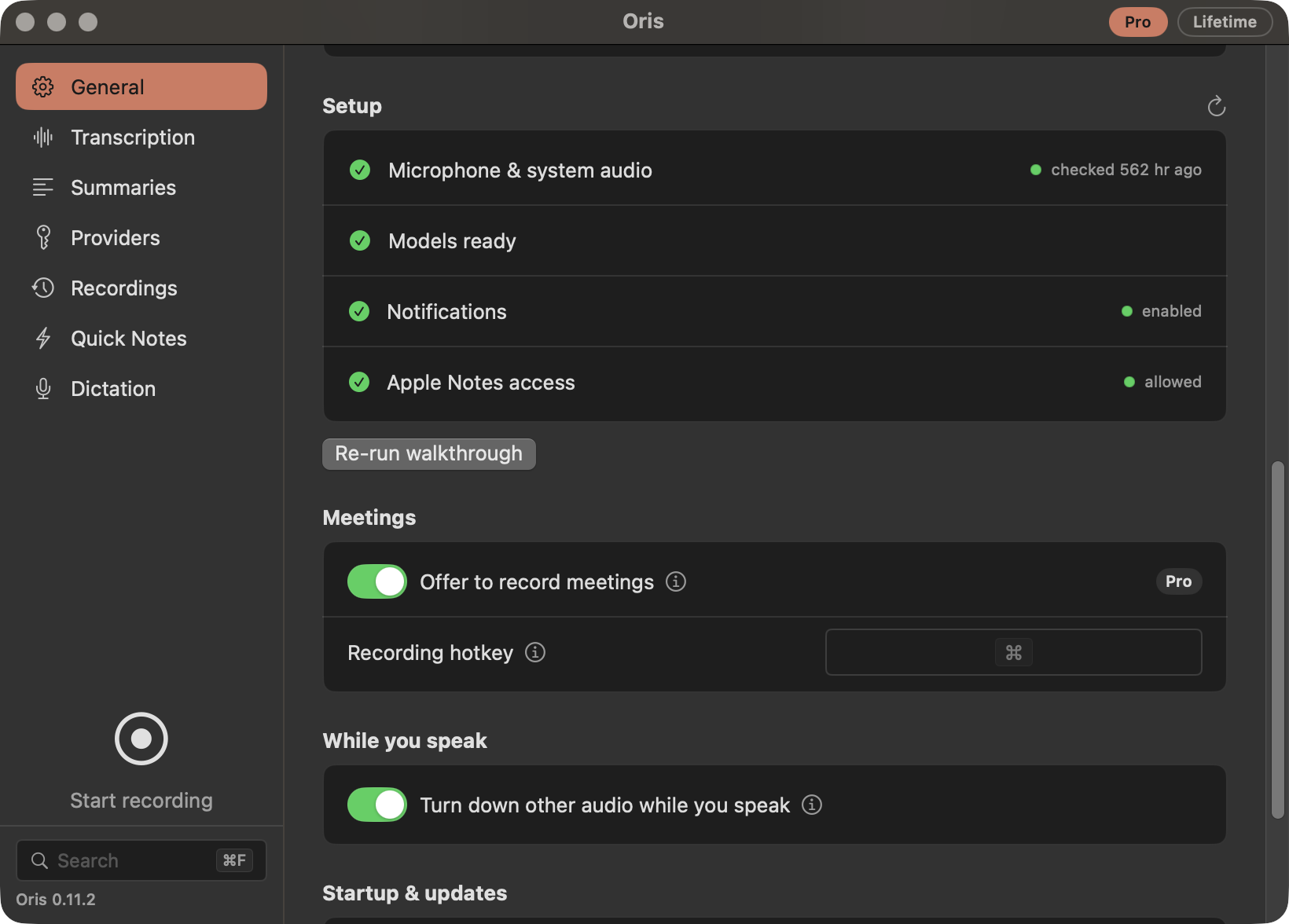
Pressing Command F anywhere in the window puts the cursor in the search field at the bottom of the rail, and the results open upward as you type. Each result shows the control’s label over the section and group it belongs to, so a match reads “Keep audio for / Recordings › Audio”. Choose one with the arrow keys and Return, and the window switches to that section and scrolls the control into view, with a rounded highlight blinking behind its row for a moment so your eye lands on the right one. The search covers about 55 controls across the seven sections, buttons included, and old names still match, so “structured notes” finds Decisions & action items and “detect meetings” finds Offer to record meetings.
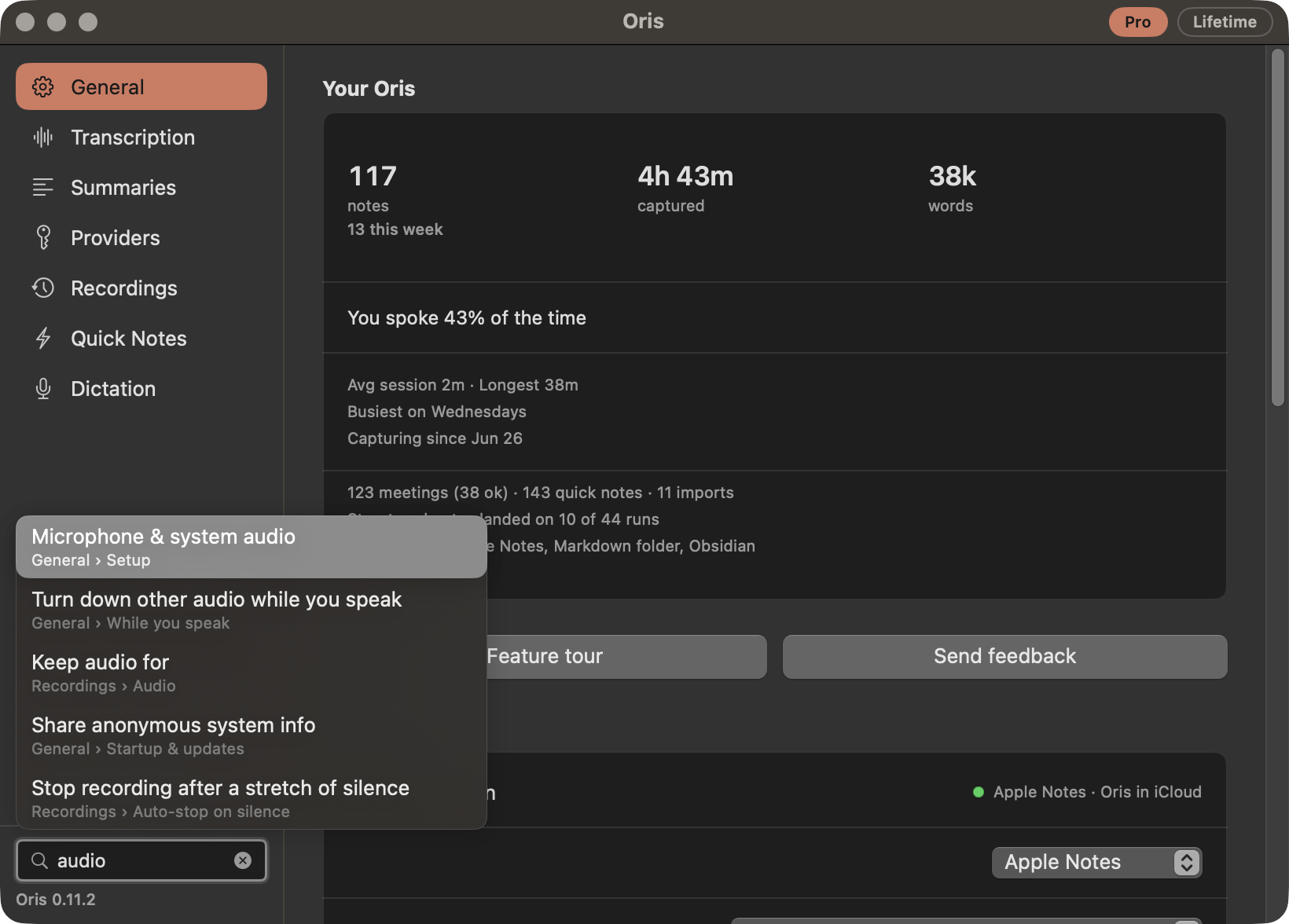
Providers have a section of their own. Each provider is a row with a switch and a drag handle, and the ones you’ve turned on sort above the rest. A row opens to its own key, model and Test button.
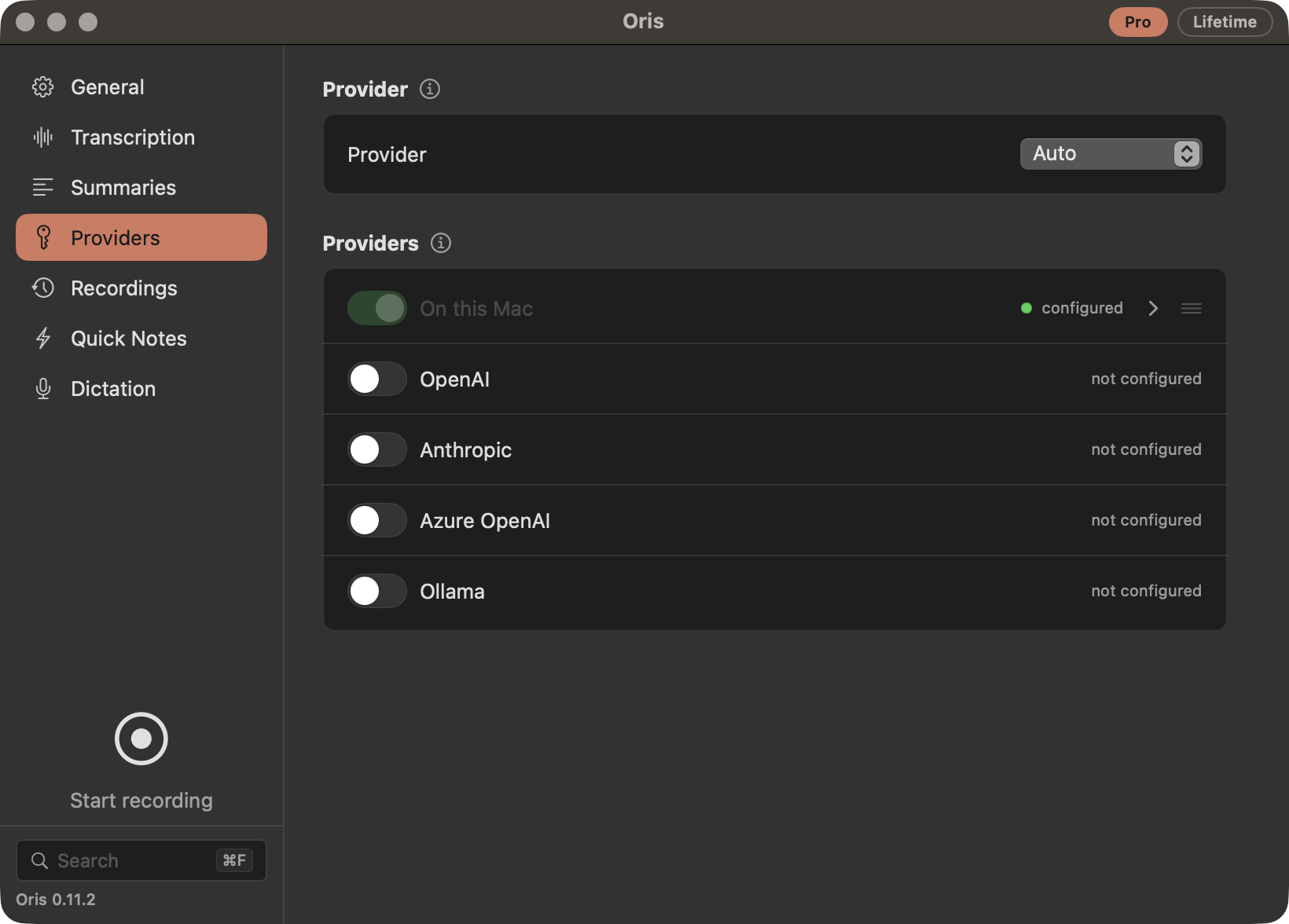
The patch builds also moved the record button to the bottom of the rail, under the seven sections and above the search field, with a small Start recording caption while idle and the elapsed time in its place while a meeting runs. The ⓘ beside each setting opens when you click it, the way the help buttons in System Settings do. It used to open only on hover, and a click did nothing. And the version at the bottom of the rail now shows the exact build, “Oris 0.11.2” instead of “Oris 0.11”, so you can tell whether you’re on the latest patch.
Meeting detection
Meeting detection shipped in 0.10 and I pulled it a few days later. The rule it used to decide whether a meeting was happening missed calls it should have caught, so I switched it off until it was fixed.
The fix changed what the detector checks. The old rule matched running app names against a list. The new one asks CoreAudio which processes have a microphone open, and that needs no extra permission. Zoom, Teams and Webex are recognized by name, and anything else that takes the microphone and isn’t on a list of known non-meetings gets the same prompt. That covers a call in a browser tab, FaceTime (macOS runs the call through a background service rather than the FaceTime app itself) and any other app with a microphone open.
Before turning it back on I tested it on real calls: Google Meet in Firefox with the microphone deliberately set to a device other than the Mac’s default, Microsoft Teams, Zoom including a rejoin, and Webex. All of them prompted.
You get one notification per app for each stretch it holds the microphone. The notification offers to start recording, with up to three of your template shortcuts listed under it, so a recording started from there can use the template you want. Clicking it starts the recording exactly as the menu bar’s Start item does, and ignoring it does nothing. Oris takes the notification down about two minutes after the app has let go of the microphone, and an app that lets go and takes the microphone again gets a fresh one, at most twice a minute.
Meeting detection is part of Oris Pro, which is free in beta. Signing up takes an email, no card, no payment.
Transcription progress
After you stop a recording, the status line used to show five labels one after another (preparing the model, transcribing, downloading a model, summarizing, finishing up) and none of them told you how far along it was. Now there are two words, and they’re the same in the Oris app, the menu bar and the Obsidian status pill. Transcribing comes with a percentage that climbs as the engine works through the audio, and Summarizing follows. If the transcription model has to warm up or download first, Transcribing shows without a number until the real work starts, and a bigger summarizer being fetched for a long meeting sits under Summarizing. Summarizing has no percentage on purpose. A cloud provider returns the whole summary at once and an on-device model streams it unevenly, so any number there would be a guess. The percentage also only shows on recordings of two minutes or longer. On a shorter one it would jump in two or three big steps and look fake, so a short recording just says Transcribing…
You also don’t have to wait for the note to finish before starting the next recording. The record button in the app used to go grey from the moment you stopped until the note was done, which on a long meeting meant minutes of not being able to start the next one. Now it’s ready again the moment you stop. The line under it keeps showing the earlier recording’s stage until the new one starts and replaces it with the clock, and the earlier recording keeps going in the background and lands in its own note with its own notification, the way it would have anyway.
Open log
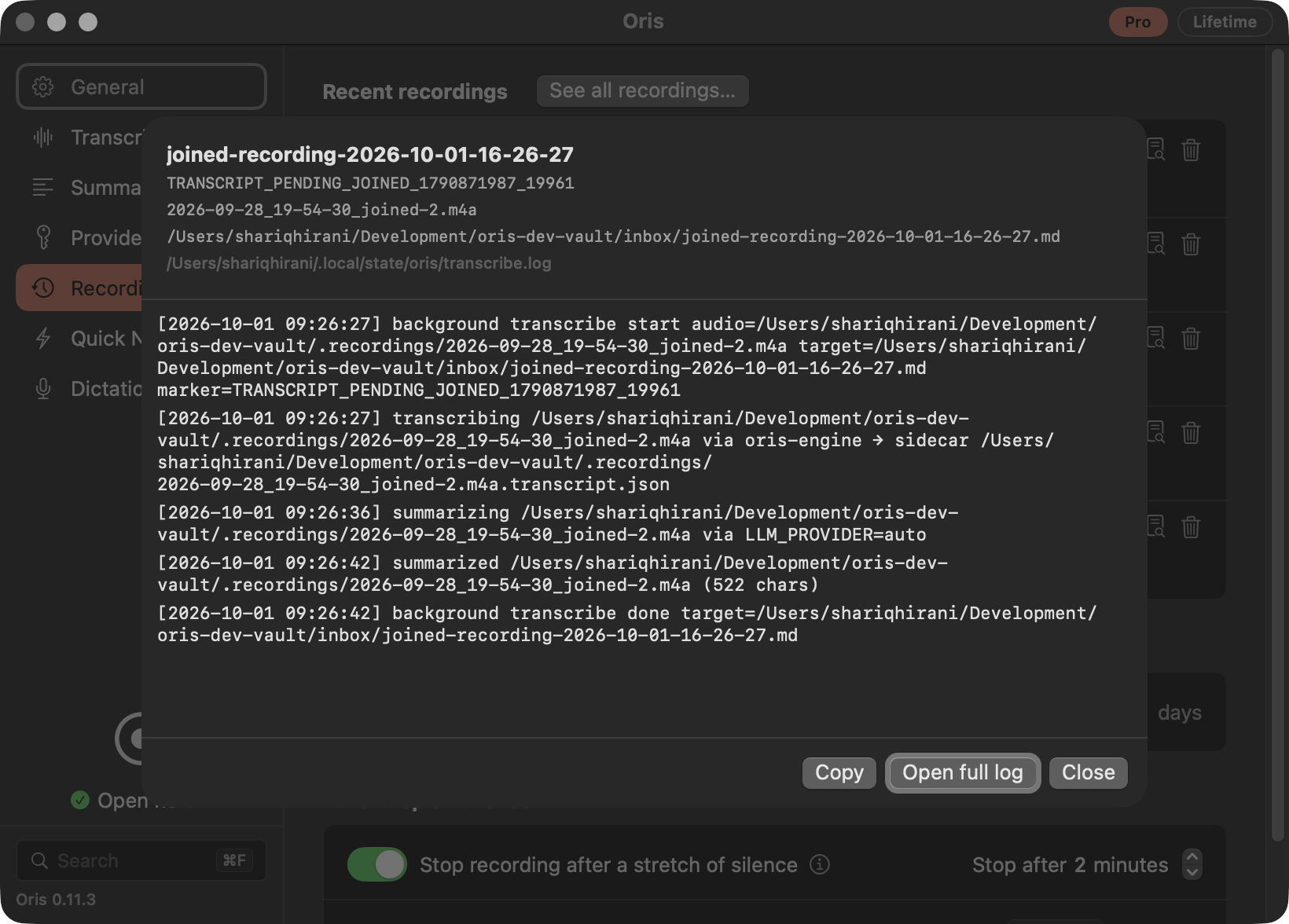
Four places in the app used to read “check transcribe.log” with nothing to click. A beta user whose summary failed asked which log, and where, and asked for a button that would take them straight to it. It was a fair ask. On a Mac without the Obsidian plugin and with the menu bar icon turned off there was no way to get to that file from Oris at all. Each of those places now has an Open log button. It opens a sheet with just that recording’s lines from the log, warnings highlighted, a Copy button for pasting into a support email and an Open full log button for the whole file.
Alongside it, a transcript that was saved but never delivered, because Oris quit before it got as far as trying, can now be delivered from the Awaiting delivery section with one click instead of a terminal command. And the recordings history has a Retry all failed button that works through every failed summary one at a time, for the morning after a provider outage or a bad key.
Splitting and joining recordings
Back-to-back calls don’t always leave a gap to stop the recorder in, and an hour later one file holds the standup and the customer call that ran straight into it, with one summary covering both badly. Oris: Split a recording… in Obsidian’s command palette splits that file. It proposes cuts at long silences and at the phrases people use to wrap up a meeting. You keep the ones that look right and add your own while you listen, and each stretch becomes its own note with its own summary and title. Nothing is re-transcribed, so the split takes seconds, and the original is filed into your vault’s _archive folder with links to every note the split produced. This has worked in the installed app since the first 0.11 build. Before that it only ran from a source checkout.
Joining is the opposite case, and it’s new in 0.11.3. You pressed stop instead of mute, or the Mac restarted for an update halfway through, and one meeting is now two or three recordings with a short note each. Oris: Join recordings… lists the recordings in your vault, oldest first, with each one’s length and size. Add the pieces in order, choose where the note goes and click Join + transcribe. The join itself takes a second or two even for hours of audio, because nothing is re-encoded, and the transcription takes as long as it would for one recording of that total length. You get one recording beside the originals, which stay where they were, and one note with a summary of the whole meeting, with your side and theirs still separated and each piece keeping its own timing. A recording that ended in a crash can usually be joined too, because Oris writes audio to disk in small pieces as it records. The one exception is a recording that died in its first second or so, before anything reached the disk. The join stops at that file and tells you which one it was, and nothing gets written.
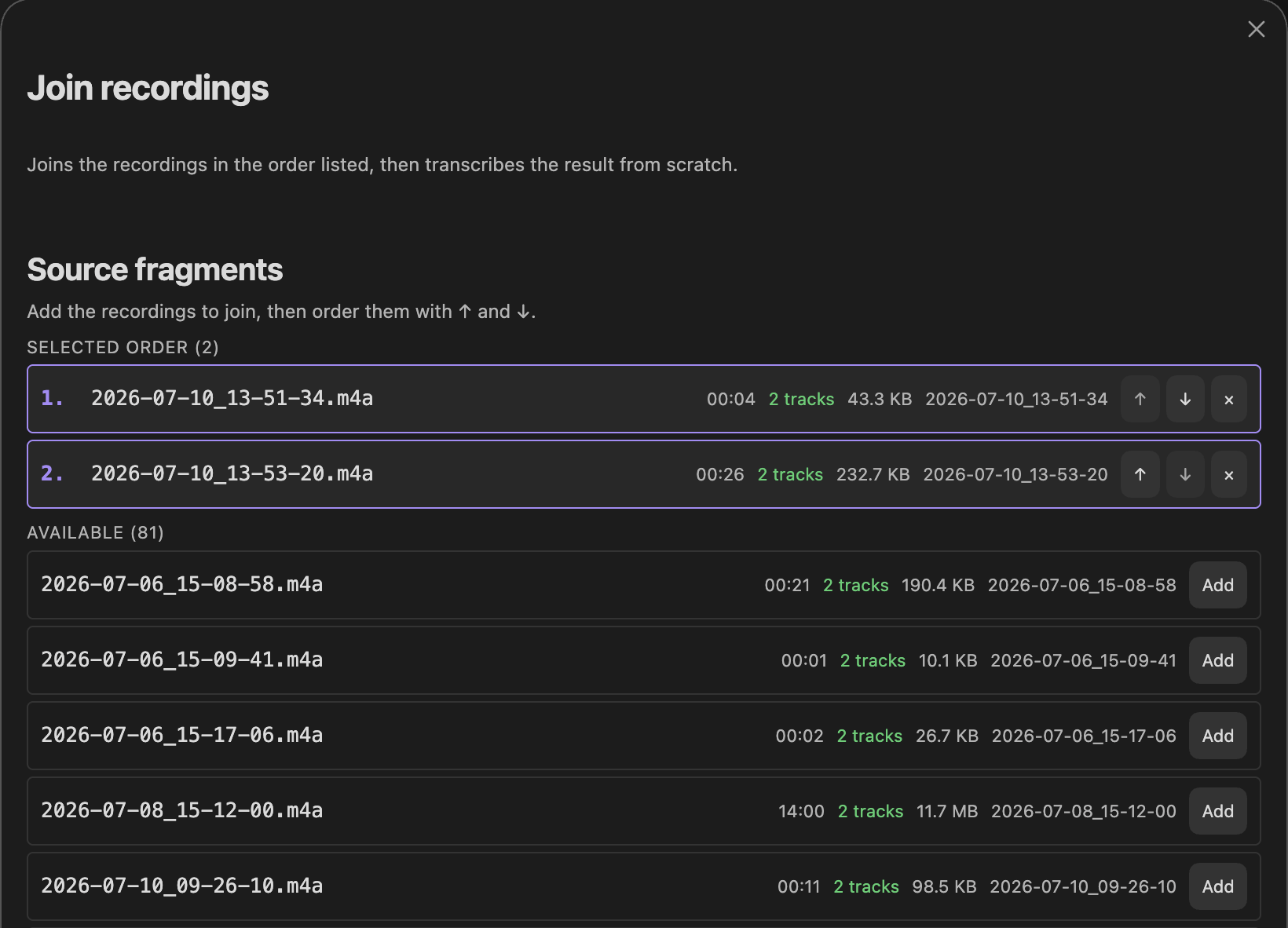
Both are Obsidian palette commands, so they’re available when your notes go to a vault.
Importing transcripts
Oris has been able to summarize a transcript it didn’t record since May, and I never wrote that up here. A Zoom auto-transcript, a Teams export, an Otter dump, a VTT or SRT subtitle file or plain pasted text all go through the same steps as a live recording and land the same way, summary included, and the format is detected for you. In Obsidian the command is Oris: Import external transcript…. Paste or pick the file, choose where it lands (your inbox, a new note or an existing note), and the summary and transcript arrive like any other meeting note. Oris: Import audio file… does the same for a recording that already exists, a Voice Memo or a Zoom export, and transcribes it first. An imported audio file is usually one mixed track, so that transcript isn’t split into me and others, and the note carries a line saying so.
The “Replace marker in existing note” destination now really lands the import at the marker a recording left behind, where it used to go to the bottom of the note. And an import whose summary fails now says so in the note, in the completion notice and in Recordings, instead of landing a note that looked finished but had no summary.
Quick notes stop on silence
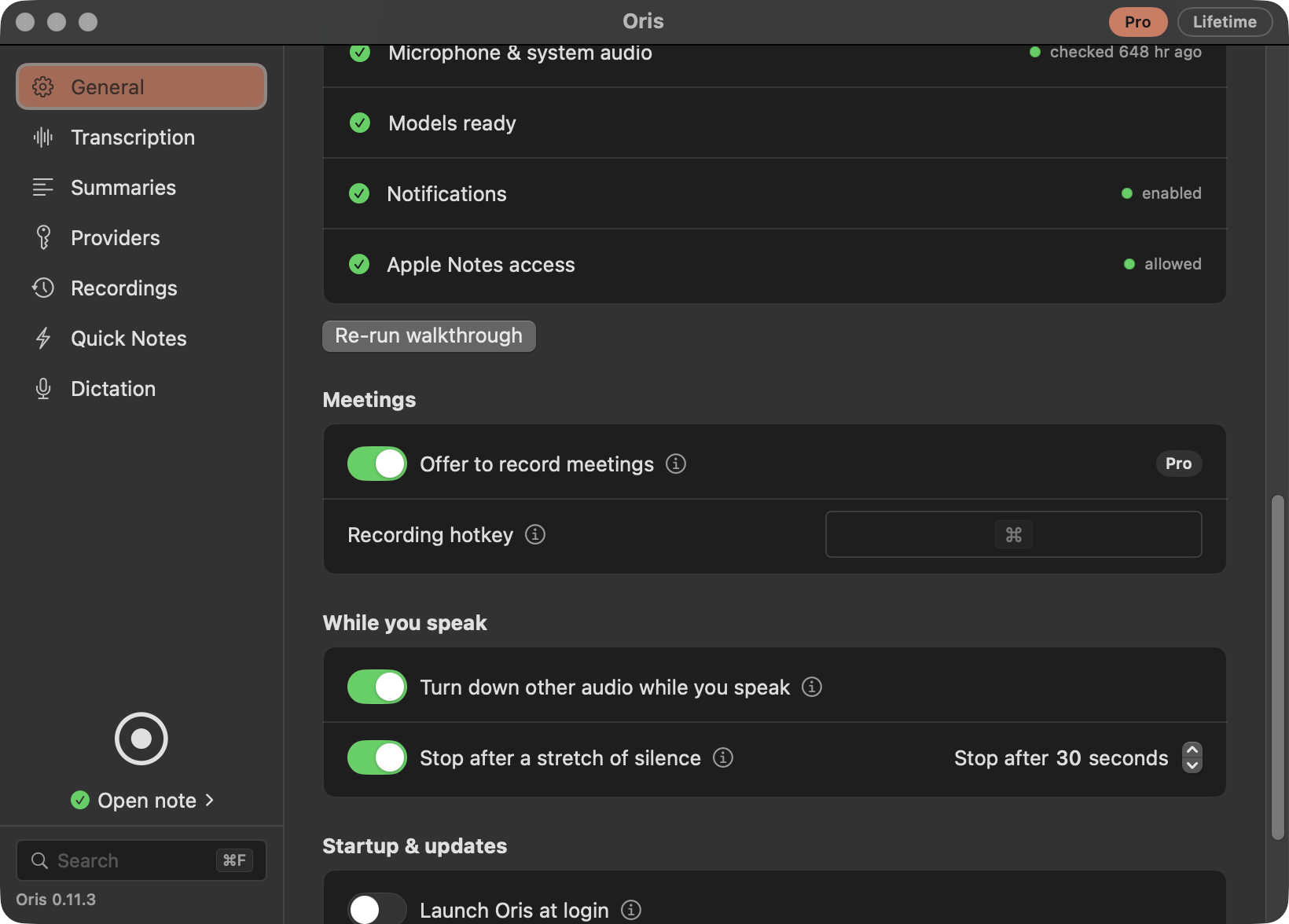
A quick note or a dictation started in press-to-start mode now stops on its own after 30 seconds of silence and lands exactly as if you’d pressed the hotkey again. This is for the note you started and then got pulled away from. It used to keep recording until you remembered it, and for a dictation that meant whatever was said next got typed into the app in front of you. Hold to talk never stops this way, and meetings keep their own longer timeout. The setting is Stop after a stretch of silence under General → While you speak, where you can change the time or turn it off.
The other setting in that group, Turn down other audio while you speak, came in the first 0.11 build. Music or a video playing through your speakers fades to a quarter of its level while you speak a quick note or a dictation and comes back when you finish. It’s on by default.
Plainer wording
I read one of the app’s notifications while testing 0.11.2 and didn’t like how it read, so 0.11.3 rewrites the user-facing text across the app. Every macOS notification now has a short title with what happened and a body with what to do next. The same pass went through the tooltips, captions and warnings in Settings, the Obsidian plugin’s notices and dialog hints, the recording refusals and the menu bar’s status text. It also went through the text Oris writes into your notes, meaning the warning when a summary fails, the callout on imported audio and the label on the collapsed transcript. When each of those appears, and what clicking a notification does, hasn’t changed.
Smaller fixes
Every time Oris downloaded one of the on-device summarizer models, it left a full-size copy behind in the Mac’s temporary folder. macOS clears that folder at restart, but between restarts the copies piled up, one per download, and a user reported nearly twelve gigabytes gone over two days. The temporary copy is now deleted as soon as the model lands in its real location, and copies left by earlier builds are cleared the next time Oris starts.
Oris used to refuse to start a recording when the lid was closed and the output was still the built-in speakers, on the assumption that system audio couldn’t be captured in that state. I finally measured it on a docked MacBook Pro with the lid closed, and the system audio came through at full level, so from 0.11.3 a docked Mac records with nothing to switch first. If your own Mac records silence in that setup, the handbook covers turning the old check back on.
Before 0.11.3, if you summarized with Ollama using a model that thinks before it answers, the model could spend all the room Oris gives a summary on thinking and come back with nothing, and the note showed the summary as failed. A beta user running qwen3.6 on another Mac hit this on long meetings. From 0.11.3 the first request is unchanged, but when a reply comes back as thinking that ran out of room before any answer, Oris retries once with the same model and much more room, inside the same ten-minute limit. If that still isn’t enough, the note says the model ran out of room while thinking, or that it thought but wrote no summary.
Oris can start at login, under Settings → General → Startup & updates, so the hotkeys and the menu bar icon are live after a restart. The message that appears when a quick note fails and Oris keeps your audio has a close button now, and it clears itself after ten minutes unless it’s the only record of where that audio went. Re-summarize, which I wrote about with 0.10, works in the installed app. The script behind it was never packaged, so the button did nothing outside a developer checkout, and 0.11.1 fixed that.
Lower the number in Keep audio for and you get a confirmation first that says how many recordings the shorter window would make eligible for deletion. Share on a recording that went to Apple Notes opens the note in Notes, where you share it from. The update dialog shows one sentence per change, with a link to the rest.
The full changelog lists everything else in 0.11 and its patches. If you haven’t tried Oris, start at orisnotes.com/get-oris.