Get set up
Apple Notes
updated
Meeting notes and quick notes delivered straight into Apple Notes on this Mac: pick the account and folder once, allow the one macOS permission it needs, and open the finished note from Oris.
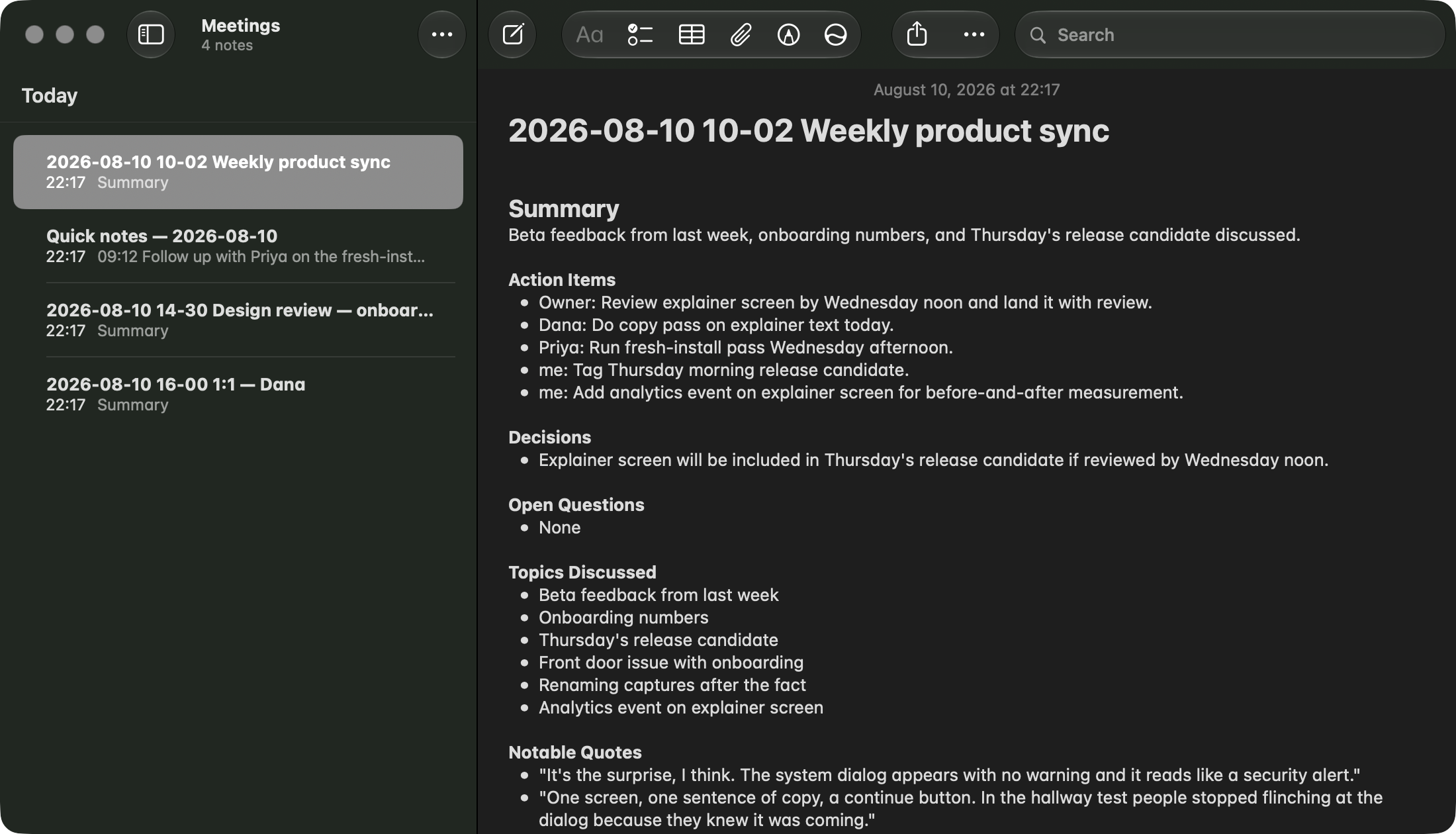
Apple Notes is a destination now, alongside an Obsidian vault and a plain Markdown folder. Pick it during the guided walkthrough and every finished meeting becomes a note in the folder you chose. Quick notes append to a note of your choosing, and the Open note button in Oris takes you straight to it in Notes.
Each meeting’s note is titled with the date and time the recording started, then the meeting’s title: 2026-08-07 14-02 Weekly sync, or 2026-08-07 14-02 Meeting when the meeting has no title of its own. That timestamp is the recording’s, not the delivery’s, so a note that reaches Notes late (after a permission fix, say) still says when the meeting actually happened, and a folder of untitled meetings stays sortable instead of filling with notes all called “Meeting”.
It is a different kind of destination from the other two. A vault and a folder are files Oris can write whenever it likes. Apple Notes is another app, and macOS only lets one app drive another with your permission. That single fact shapes everything below: the permission macOS asks for once, and the fact that deliveries go through the Oris app rather than around it.
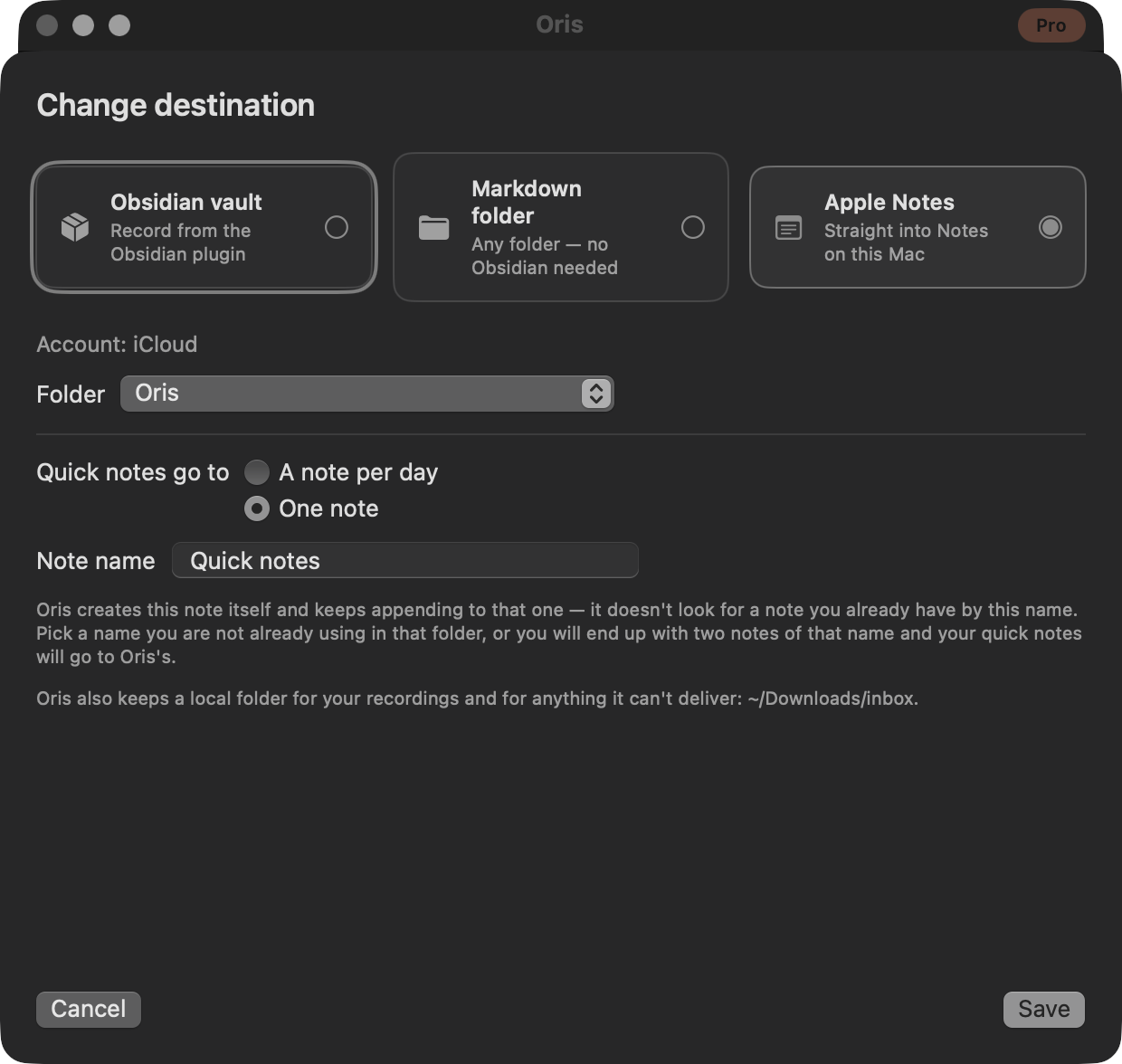
Choosing the account and folder
Choose Apple Notes in the walkthrough and Oris asks Notes itself what you have, rather than making you type anything. It lists your Notes accounts (iCloud, On My Mac, an Exchange or Google account if you have one) and then the folders inside the account you pick, each shown by its full path, Work / Meetings. Two folders called “Notes” in different places are never confused for each other.
A few things are worth knowing at this step:
- Shared folders are labelled, not blocked. A folder you share with other people shows
(shared)beside its name, and picking it raises a warning that says exactly what that means: notes delivered there are visible to everyone you share it with. Oris still lets you choose it. This is your library, and there are perfectly good reasons to want a shared team folder. If a folder you already deliver to becomes shared later, Oris tells you once, the first time it notices. - An account with no folders can’t be used yet. Notes needs at least one folder to put a note in, so Oris asks you to make one (File → New Folder in Notes) and offers a Reload folders button, rather than inventing a folder in your library.
- Oris still keeps a local folder. Even with a Notes destination, Oris needs somewhere on disk for your recordings. If you already have one, it stays: switching an Obsidian vault or a Markdown folder over to Apple Notes leaves that folder as the local root, and nothing about the switch moves a file. Only a Mac with no usable folder yet gets a new one,
~/Documents/Oris. Either way the setup card names the exact path before you commit. Your notes go to Apple Notes and your audio stays in that folder. A note that has not reached Notes yet is in neither place: it is saved durably in Oris’s own delivery outbox, which is what the Awaiting delivery section reads from.
The permission macOS asks for
Before macOS asks anything, Oris explains what is about to happen and why. You see an explainer screen, then a Continue button, and only then the system prompt. The prompt itself asks whether Oris may control Notes, and the reason it gives is the whole scope of what Oris does with the grant:
List your Apple Notes accounts and folders, create and append your notes, and open a note you ask to see.
Click OK and setup carries on into the account picker, which is itself the proof the grant works. There is no second prompt later. The permission is asked for once, in setup, on purpose: a delivery is a bad moment to meet a dialog.
If you click Don’t Allow, nothing breaks and nothing is lost. Oris shows a recovery panel with the exact path to fix it (System Settings → Privacy & Security → Automation → Oris → enable Notes), a button that opens that pane for you, and one warning worth reading: macOS may quit Oris when you toggle its Automation switch — and if it stays open, quit and reopen it yourself, because a running app keeps its old answer until it relaunches. Quitting means Quit Oris from the menu bar icon: closing the window or pressing ⌘Q only hides Oris, and a hidden Oris is still the same running app with the same old answer. Check again re-reads the answer without asking you anything.
The same goes for the permission being switched off later, however that happens — a change of mind in System Settings, a reset, a restored machine. Deliveries that come due while the permission is off wait quietly rather than failing over and over, and once Oris is running with the permission back on, it notices on its own and delivers everything that was waiting. That includes a delivery that was cut off mid-write when the permission changed under it: Oris first checks the note to see whether anything landed, and only then finishes or re-sends, so nothing arrives twice. You don’t need to retry anything by hand; the fix is the two steps the panel names — flip the switch back on, and make sure Oris has been restarted since.
Once a Notes destination exists, the General section grows an Apple Notes access row beside the Microphone & system audio row. It reads allowed, not set up yet, turned off, or not checked, and its button is the fix for the state you’re in rather than a probe of it. When the row says not set up yet, the button is Grant access: a short caption right there explains what macOS is about to ask, the click raises the one system prompt, and the row updates itself with the answer. (If the probe couldn’t reach Notes at all, the button stays Check, since no prompt can be promised until Notes answers.) When it says turned off, the button is Open System Settings, landing on the Automation pane; when you come back to Oris it re-checks the answer on its own, so you’re not asked to click a second time. A quieter Check again link only re-reads the answer macOS already holds and never asks anything. Not checked is an ordinary resting state rather than a problem: reading the answer means launching Notes, and opening a settings tab is not a reason to open Notes, so Oris reads it by itself only when Notes happens to be running already. With Notes closed the row simply says nobody has looked yet, and its Check button is the explicit ask.
The row also keeps up with a permission that changes while Oris is running, which matters because a grant can go away without anybody touching Oris — a reset, a restored machine, a security update. The ↻ button at the top of the Setup card re-reads Apple Notes access along with the vault, plugin and model rows, so a row that has been sitting on allowed since you launched the app flips to not set up yet (or turned off) the moment you refresh it, and the button that belongs to the new state arrives with it: Grant access raises the macOS prompt again where the permission has never been answered, and Open System Settings takes you to Privacy & Security → Automation → Oris → enable Notes where it has been switched off, since a permission you have already declined will not prompt again no matter who asks for it. Refreshing only ever reads, and the asking is always a button of its own. Oris corrects the row by itself when a delivery parks for permission too, so the notification telling you to finish setup in Oris and the row you land on agree about what is wrong. Once the answer comes back yes, whatever was waiting goes out within a few seconds, with no relaunch and nothing to retry by hand.
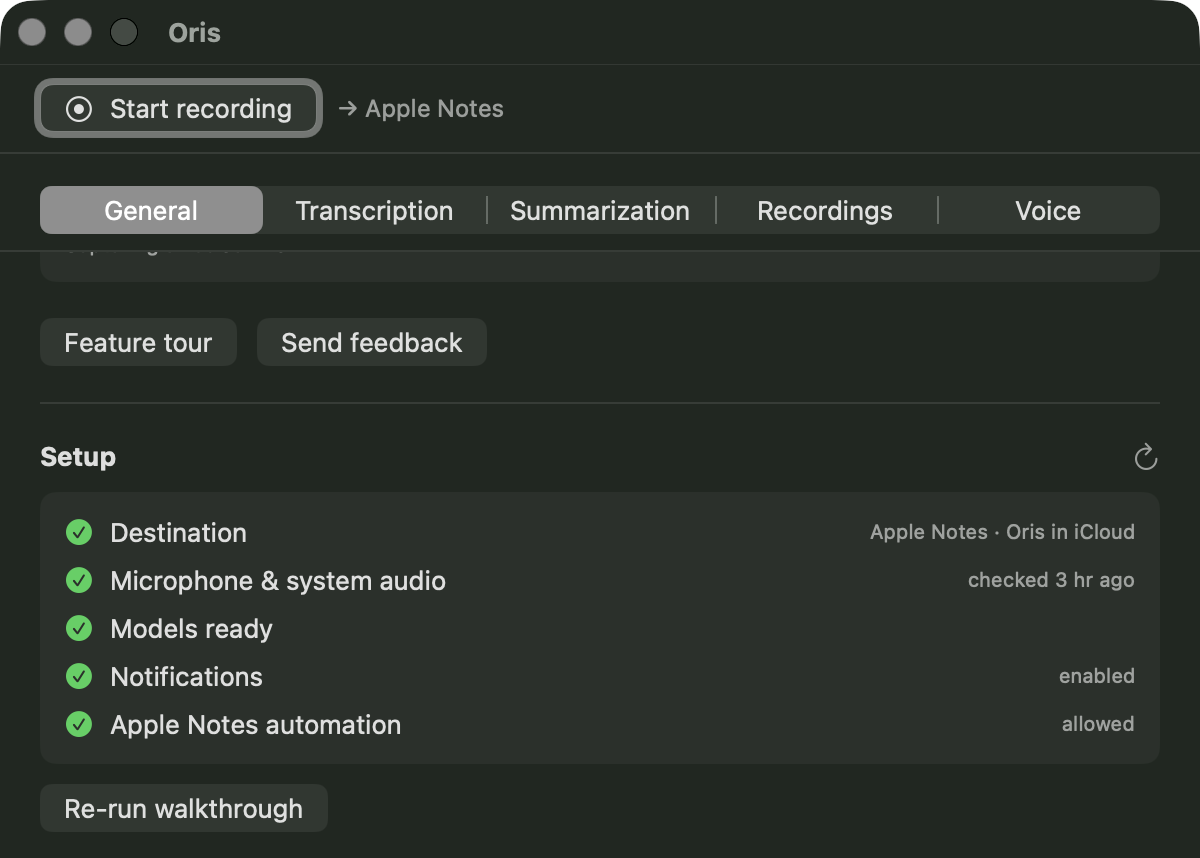
This is a permission of its own, on top of the microphone and system-audio grants Oris asks for at first run (see Permissions) and the notifications prompt that follows them. macOS keeps it separate from all of those, in the Automation section rather than under a microphone or screen-recording heading.
Quick notes into Notes
Choosing Apple Notes also decides where Quick Note captures land, in one of two shapes:
- Daily note. Oris creates a note called
Quick notes — <date>in your folder as you need it, and appends the day’s captures to it. - Pinned note. Every quick note appends to a single note you name, created the first time you use it.
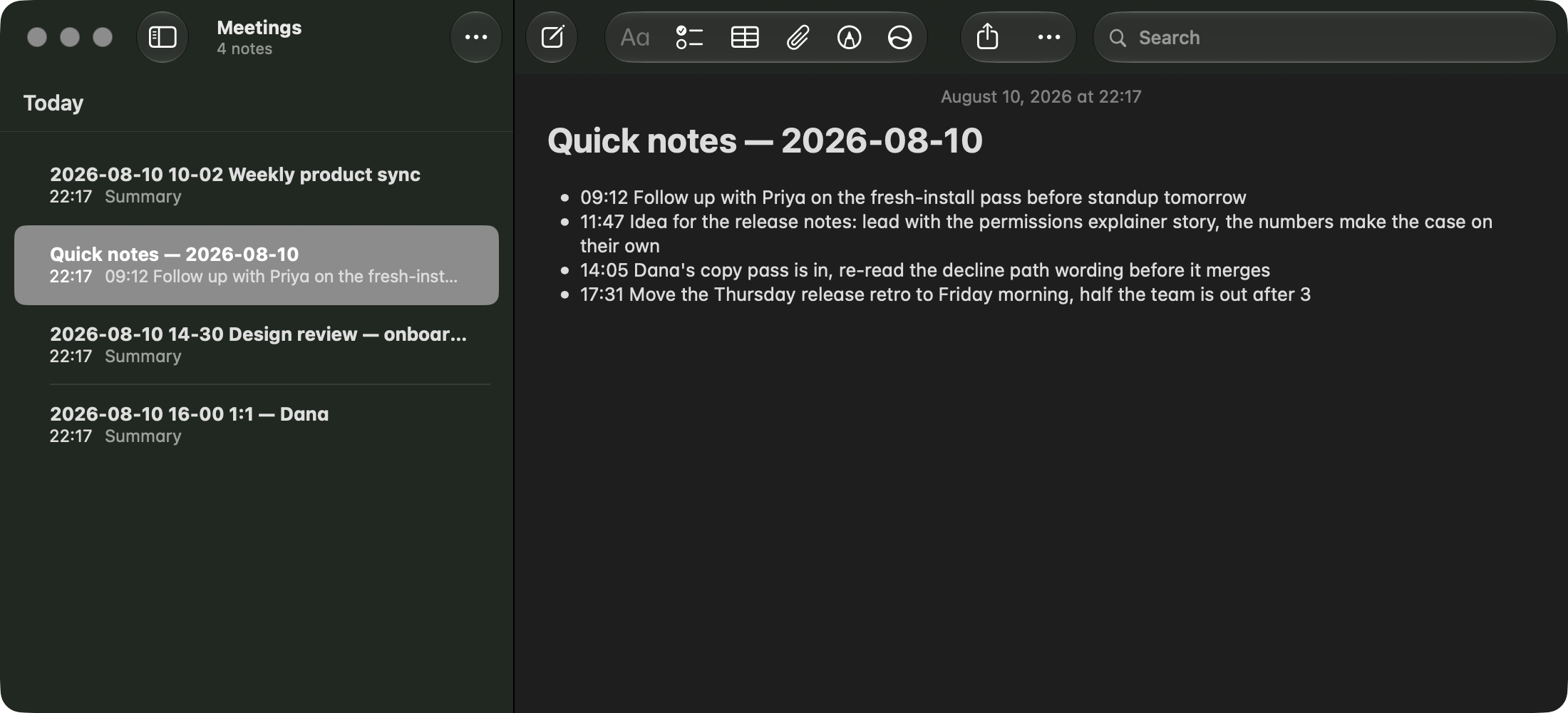
Oris makes that note itself, the first time you use it, and it does not check whether you already have one by that name. Notes allows two notes in a folder to share a title, so if you name a note you already keep by hand you will end up with two of them and your captures will go to Oris’s. Pick a name you are not already using.
After that first capture Oris remembers the note it made and appends to that note, not to anything with that title, so renaming it in Notes does not send your captures elsewhere. The title comes back into it when that remembered note is no longer somewhere Oris may write. Deleting it does that, and so does anything that invalidates Notes’ own identifiers wholesale — an iCloud sign-out, a restore, or a migration each do. So does moving it: Oris will not follow a note out of the folder you picked, because the folder is what you actually chose, so a note you drag into another folder or another account is treated exactly like one that is gone, and so is the note left behind in the old folder when you point Oris at a different one. The next capture then looks for the note by name inside the folder before making a fresh one, and it looks only among notes carrying Oris’s own mark. Oris recognises its own by an invisible mark it writes into them, and appends only to those, so a note you keep by hand under the same name isn’t a candidate at all: it is not adopted, and it doesn’t even count as a competing match. A note of yours qualifies only if it carries that mark, which is what happens when you copy Oris’s own notes into one, since the mark rides along with them. Find none and it makes a fresh one rather than resurrecting the note you removed or chasing the one you moved away. It will do that as often as it has to — delete the replacement, or move that one out too, and the next capture is answered by another fresh note — but each of those stands in for a note that is gone or somewhere else, so what stays in the folder is one live note rather than a pile of them. The attempt against the note that had gone is cleared when the capture lands in the replacement, so you are not normally left with a red “couldn’t be delivered” item about a capture that is sitting in Notes; if one does linger, Mark delivered… on it in the Recordings section closes it. What it will not do is loop inside a single capture. It makes one bounded replacement attempt, and holds the capture in Oris’s inbox with the reason only if that second append fails too. Find two of its own by that name and it refuses rather than guess, saving the capture to Oris’s inbox and saying why. That last case is rarer than it sounds but real: Notes keeps deleted notes in Recently Deleted for a while and other devices can sync a restore back, so a note Oris already replaced can reappear alongside its replacement. Removing or renaming one fixes the next capture automatically; the one already saved does not retry itself, so send it on with Send to vault from the quick notes viewer, which is the recovery for a held capture.
If a quick note cannot reach Notes at all, it is saved to Oris’s in-app inbox rather than lost. What happens after that depends on how far the delivery got, and the two cases behave differently.
Most failures are terminal, and they wait for you. The Automation permission not granted yet or switched off, a destination that no longer names a note, two notes Oris made in the folder sharing the target title: none of those get better on their own, so nothing re-attempts them. Fix the cause and send the held capture on with Send to vault in the quick notes viewer, which with an Apple Notes destination re-sends it to Notes rather than writing a file anywhere.
A failure that happened after Oris had reached Notes is different. If the write came back in a state a later attempt could resolve, because the note was busy at that moment or because Oris could not read the note back to confirm what it had written, the attempt is queued in Oris’s delivery outbox and the app re-drives it on its own. So a capture sitting in the inbox may still turn up in Notes a little later, without you doing anything.
Either way the inbox copy is kept — that is the never-lose promise — but it does not go on claiming the capture is waiting. When a queued attempt lands, or you send one on by hand, the copy flips to sent in the viewer and Send to vault stops offering it, so a capture that already reached Notes can’t be appended there a second time. The viewer entry stays as the record; Notes holds the delivered copy.
Deliveries go through the Oris app
macOS grants permission to control Notes to an app, and Oris’s is granted to Oris itself, not to the background pipeline that transcribes your meeting, and certainly not to Obsidian. So an Apple Notes delivery always happens inside the Oris app.
Most of the time you will never notice, because the app is running: the delivery happens within seconds of the transcript being ready, and you get a single notification — the one telling you the note landed. Running is all it takes, not open: closing the window or pressing ⌘Q only hides Oris, which keeps running in the menu bar, so a meeting you stopped from Obsidian with the Oris window long since closed still lands in Notes on its own. The one case left is having quit Oris outright — Quit Oris from the menu bar icon, or Quit on its Dock tile — and then recording from the Obsidian plugin: the finished transcript is saved durably and waits. The notification says so rather than claiming a note that doesn’t exist yet:
Transcript saved
Open Oris to finish delivery to Apple Notes.
Clicking that notification does exactly what it describes: it opens Oris on the Recordings section, where this recording is sitting under Awaiting delivery. Opening Oris any other way works the same — it delivers on its own within moments — and the Recordings history shows the recording as still being delivered (Delivering to Apple Notes…, with the rail’s dot pulsing) rather than as a failure, until the note is in Notes. Nothing needs retrying by hand and nothing lands twice: if a delivery was already made, Oris recognizes its own work and doesn’t write a second copy.
Notes itself does not have to be open. Oris launches it in the background when it needs to, without stealing your focus.
Opening the note
Wherever Oris offers to open a delivered note, a Notes destination behaves like any other: the note opens in Apple Notes, scrolled to and frontmost. Those places are the arrow-in-a-square and the Share icons on a Recordings history row; a note in Notes has no file to hand the share sheet, so Share takes you to the note instead.
Oris stores the note’s real Notes identifier when it delivers, so this keeps working after you quit and relaunch both apps, and after you move the note to another folder. Identifiers do sometimes stop resolving: signing out of iCloud, restoring a library from backup, and account migrations can each renumber every note at once. When that happens Oris looks the note up again by its folder and title before giving up. Two notes in a folder are allowed to share a title, so that lookup only accepts an answer when exactly one note matches; anything else, and it says so plainly (“this note can’t be found. It may have been deleted”) instead of guessing. Showing you the wrong note is not a mistake a second click undoes.
Known limitations
Apple Notes is not a Markdown editor, and some of what follows is a property of Notes rather than a rough edge Oris will smooth away later. All of it is worth knowing before you pick it.
- Formatting settles, it doesn’t round-trip. Notes stores rich text, not HTML, and rewrites what it is given into its own shape. Oris only writes the shapes that survive that rewrite unchanged: headings, bold and italic, bullet and numbered lists, links, and the transcript’s speaker lines. So a delivered note looks the same every time. What you won’t see are horizontal rules, tables, checkboxes, and block quotes, which Notes either drops or turns into something else. Block quotes are written as italic text instead.
- An append can reformat what’s already in a note. Notes rewrites a whole note as it saves, collapsing some spacing and simplifying the odd element, so the first time Oris appends to a note that already contains your own writing, that writing is tidied into Notes’ own shape. It happens once, deterministically, and only to content Oris didn’t write. Since Oris appends only to notes carrying its own mark, the way to reach this is to type your own text into one of those, such as a heading you add to the quick-notes note. An ordinary note of your own is not appended to, so it is not reformatted either.
- A retried summary lands as its own note, for now. Oris does not yet patch a block inside an existing Notes note the way it does in a Markdown file, so when a summary fails and you retry it, the fresh summary arrives as a new note titled
Summary — <the meeting's title>, in the same folder, carrying the same date-and-time prefix as the original so the two sort side by side. The original note keeps its visible ⚠️ block as the pointer. Patching in place is planned. See when a summary fails. - A busy note becomes a new note. If you (or a syncing device) are editing the note Oris wants to append to at the exact moment it writes, Oris backs off and tries again. If the note is still busy after several tries, it saves to a new note in the same folder instead of dropping the content. The notification names the note it made, so nothing lands somewhere you weren’t told about.
- Nothing is delivered while Oris is quit. Covered above, and it is the one behavioral difference from a folder destination: an Apple Notes delivery can wait for you to open the app. A closed window doesn’t count, and neither does ⌘Q — both just hide Oris, which keeps running in the menu bar and delivering without a window; only quitting — Quit Oris from the menu bar icon, or Quit on the Dock tile — pauses deliveries.
- Audio never goes to Apple Notes. Only the note’s text is delivered. The recording itself stays in the local folder Oris keeps, under your usual audio retention setting.
- Shared folders are a warning, not a wall. Oris warns at setup and again if a folder becomes shared, and delivers either way. Deciding what belongs in a folder other people can read is yours to make.
- An iCloud account syncs, because that’s what it does. A note delivered into your iCloud account syncs to your other devices exactly like any note you type in Notes. Choose an On My Mac folder if you would rather a transcript stayed on this machine. Oris’s transcription and its default summaries still run on-device either way; the destination is a separate choice from where the audio is processed.
How it works underneath
Deliveries and receipts — how a note is made durable before it lands
Behind the notes Oris writes sits one small promise with two halves: the finished content is made durable before it goes into your note, and every landing attempt leaves a receipt. Together they mean a failed write can’t lose the work, and a repeated one can’t give you the same transcript twice.
How a note lands
When a recording finishes, Oris first saves the finished transcript (summary and all) as a durable copy in its own state directory, and only then writes it into your note. If that write succeeds, a receipt records exactly where it landed. If it fails because the note went read-only, the disk filled, or the machine died mid-write, the durable copy simply stays in the outbox, the failure is recorded, and Oris tells you. The recording’s transcript isn’t gone; it just hasn’t landed yet.
The receipt is also what stops duplicates. Before landing anything, Oris checks whether that exact content already reached that destination, so re-running a recovery, clicking retry twice, or replaying an interrupted delivery gives you one copy in your note, not two. The one case that needs your judgment is the one Oris can’t resolve alone: when it genuinely can’t tell whether a note landed. Check the note yourself, then use Mark delivered… on the awaiting-delivery item to close it out — that records your answer without writing anything twice.
The same machinery covers imports and quick notes. One honest caveat on scope: the first quick note of a day or week creates its periodic note’s header line just before the capture is persisted, and a quick note you’re still dictating when a meeting recording starts is discarded by design. The durability promise is about finished content on its way into a note, not about every keystroke.
Where you see it
- Setting it up happens on the Destination row, not in a window of its own: pick Apple Notes from the dropdown and the account, folder, quick-note shape and note name all appear as rows right there. Three moments still open a small sheet, because each is a paragraph you need to read rather than a value you pick: the explanation of the one permission macOS is about to ask for (which has to be read before the prompt, and is the only place the prompt is raised from), the recovery instructions if you’ve turned that permission off, and the honest “Oris couldn’t ask” case. macOS’s own permission dialog is of course macOS’s. Once Apple Notes is set up, the button on that row reads Change folder — the “Set up Apple Notes” wording never comes back.
- The Recordings section’s “Awaiting delivery” section is the outbox made visible: when anything is waiting, it appears at the top of the tab with what’s waiting, where it was going, and why it hasn’t landed. Each item offers what’s actually safe for its state: retry for a plain failure or an interrupted write, Deliver for a transcript that was saved but never got as far as a delivery attempt (the app quit mid-pipeline, say), Mark delivered… where a blind retry would be the wrong move, and details either way — including an Open log that shows that item’s lines from
transcribe.log. That covers two situations: the couldn’t-tell case below, and a quick note whose text is already safe in Oris. A quick note never gets a retry button here, because its real recovery is the Quick Notes viewer’s Send to vault; once you’ve sent or kept it, Mark delivered… clears the leftover item without writing anything. In the common case you won’t have to: when a capture’s text lands, Oris clears the other queued attempts it can still tie to that capture — whether you sent it yourself, a queued delivery finished on its own, or Oris had to make a replacement note to land it in — so the queue usually reflects what actually happened, with nothing left over to append the same note twice. Usually rather than always, and the exceptions are worth knowing: that clearing is itself a write to the queue and can fail, an old attempt Oris can no longer tie to any capture is outside this entirely, and an attempt the queue had already picked up in the moment the other one landed is past the point of being called off. So an item does occasionally outlive the capture it’s about, and Mark delivered… is what closes it — the same one click as any other. What stays for you to clear by hand is the case Oris can’t decide alone — a capture you kept in Oris rather than sending on. While anything is waiting, the Recordings section itself says so: its row in the rail carries the count — Recordings (2) — so a stuck delivery is announced even when you’re elsewhere in the app, and the count disappears the moment the queue drains. The first time the queue goes from empty to non-empty, Oris also posts one macOS notification, Note not delivered (“Oris kept it. Click to open Recordings.”), so a failure that happens while you’re elsewhere entirely still reaches you; clicking it brings you to the Recordings section in Oris. It’s one banner per incident, never one per item, it isn’t repeated on later launches for a queue you’ve already been told about, and it holds off for about half a minute first so a queued delivery Oris is about to finish on its own never raises a false alarm. When nothing is waiting, the section isn’t there at all. One entry there isn’t a failure at all: with an Apple Notes destination, a recording finished while Oris was quit waits here until you open it, because macOS grants the permission to control Notes to the app. Nothing needs clicking: opening Oris is the whole fix. - The recordings history joins receipts into each row, and it agrees with the section above it: a recording Oris is still delivering reads “finishing delivery to Apple Notes…” in gray, and one whose delivery really failed says so in plain words — “delivery failed (permission); the transcript is saved, not yet in the note”. Retry delivery, in the row’s … menu, lands the saved copy. No re-transcribing, no re-summarizing: the bytes that land are the bytes that were saved.
- The failure notification sends you to the Recordings section’s awaiting-delivery section, because that’s the one surface every install has, whether or not you’re in Obsidian.
- A crash mid-write is reconciled rather than guessed at: Oris checks the note itself to see whether the write actually happened before deciding anything. In the rare case it genuinely can’t tell, it says so and asks you to look, because you checking the note beats it writing a duplicate. Once you’ve looked and the note is there, Mark delivered… on the awaiting-delivery item records your answer and closes it, without writing anything to your notes.
Everything here stays in local files on your Mac. Receipts record ids, paths, and outcomes, never note content, and none of it leaves your machine.