Get set up
Obsidian and Markdown
updated
The two file destinations: a vault with cursor-anchored insertion and rename-following, or any folder of Markdown files. What each one decides, and where a note goes when the spot you reserved is gone.
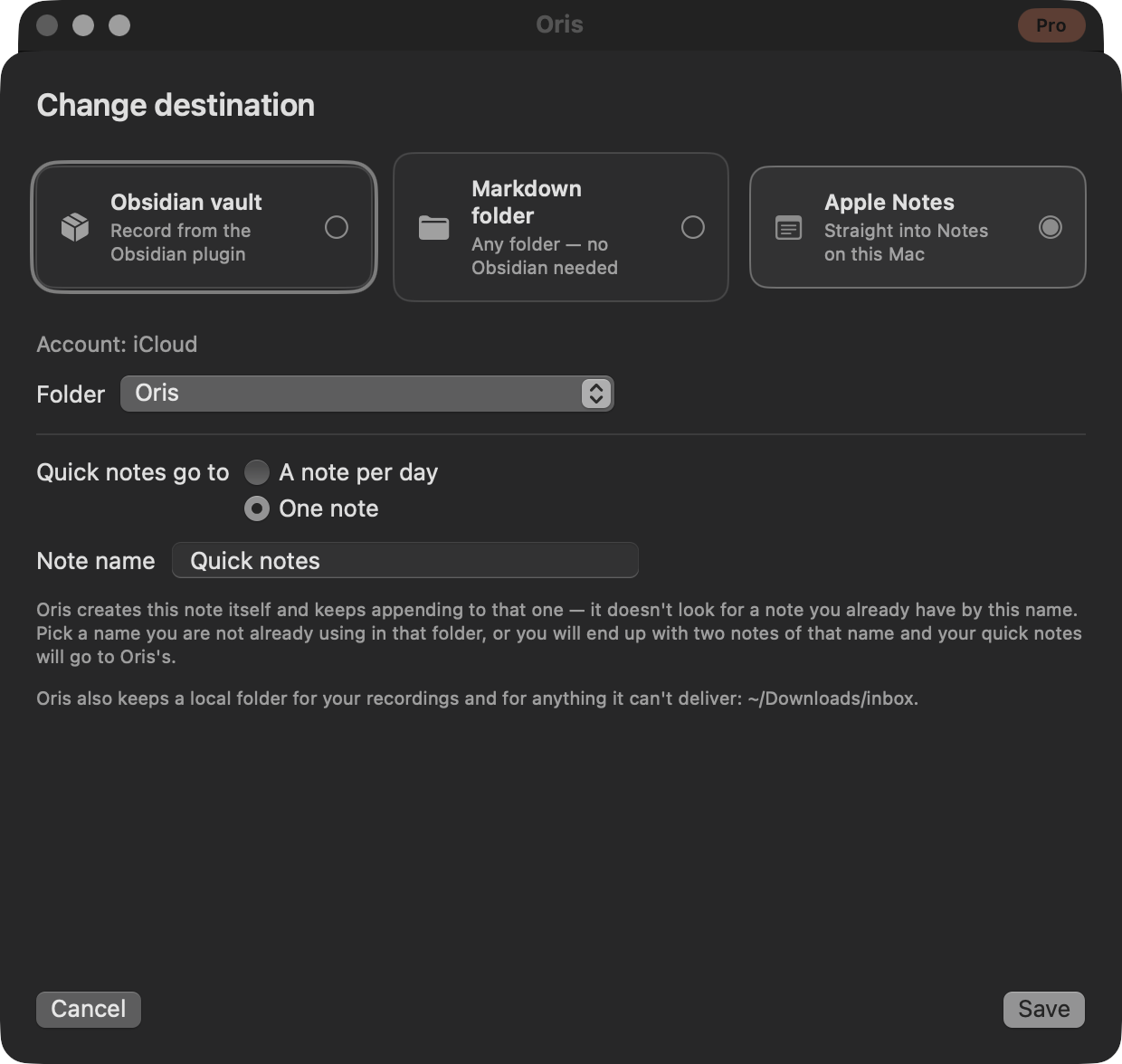
Every transcript Oris produces lands somewhere. Where is an explicit choice called a destination: made during the guided walkthrough, and changeable at any time afterward from the General section. The walkthrough offers three cards, and the same three choices come back in the Destination row’s dropdown:
- Obsidian vault — the richest integration and the same behavior Oris has always had: cursor-anchored insertion when you record from the plugin, rename-following, the inbox fallback. If you have exactly one vault, onboarding finds it on its own.
- Markdown folder — any writable folder on your Mac. No
.obsidiandirectory, no Obsidian install, nothing to set up beyond picking the folder. Notes are ordinary.mdfiles you can open with anything. - Apple Notes — a note in the Notes account and folder you pick, on this Mac. The one destination that isn’t a file: it needs a permission from macOS at setup, and its deliveries happen inside the Oris app.
Notion is planned. The onboarding cards say so plainly, because a destination that only pretends to work would be worse than one that isn’t offered yet.
How a folder destination lands notes
Choosing a Markdown folder also chooses what happens per recording:
- Create a new note (the default). Each recording becomes its own file, named by a pattern of date, time, and the note’s title, so a folder full of meetings sorts itself chronologically in Finder:
2026-07-31 14-02 Weekly sync.md. The onboarding step shows a live preview of the name as you edit the pattern, awkward characters in titles are cleaned up so the filename is always valid, and if a name is somehow taken, Oris suffixes rather than overwrites. An existing note is never clobbered. - Append to one note. Every meeting lands at the end of a single file you name. Oris creates that note when you continue through the walkthrough, and from then on will only ever append to it. If the file later disappears, the delivery is held safely in the outbox rather than silently recreating a note you may have deliberately removed.
The destination decides, always
A folder is a folder, not an editor, so two things an Obsidian vault can do have nothing to act on here: replacing the invisible marker at your cursor, and following a note you renamed mid-meeting. When they can’t apply, the destination wins. The note is created (or appended) in your folder exactly as it would be for any other recording, and the marker in whatever note you happened to be typing in is left alone. The same holds for importing a transcript into a note you have open. Nothing is refused and nothing is held back: the completion notification names the file that was actually written, so you’re never looking at an unreplaced marker wondering where your transcript went.
Where you see it afterwards
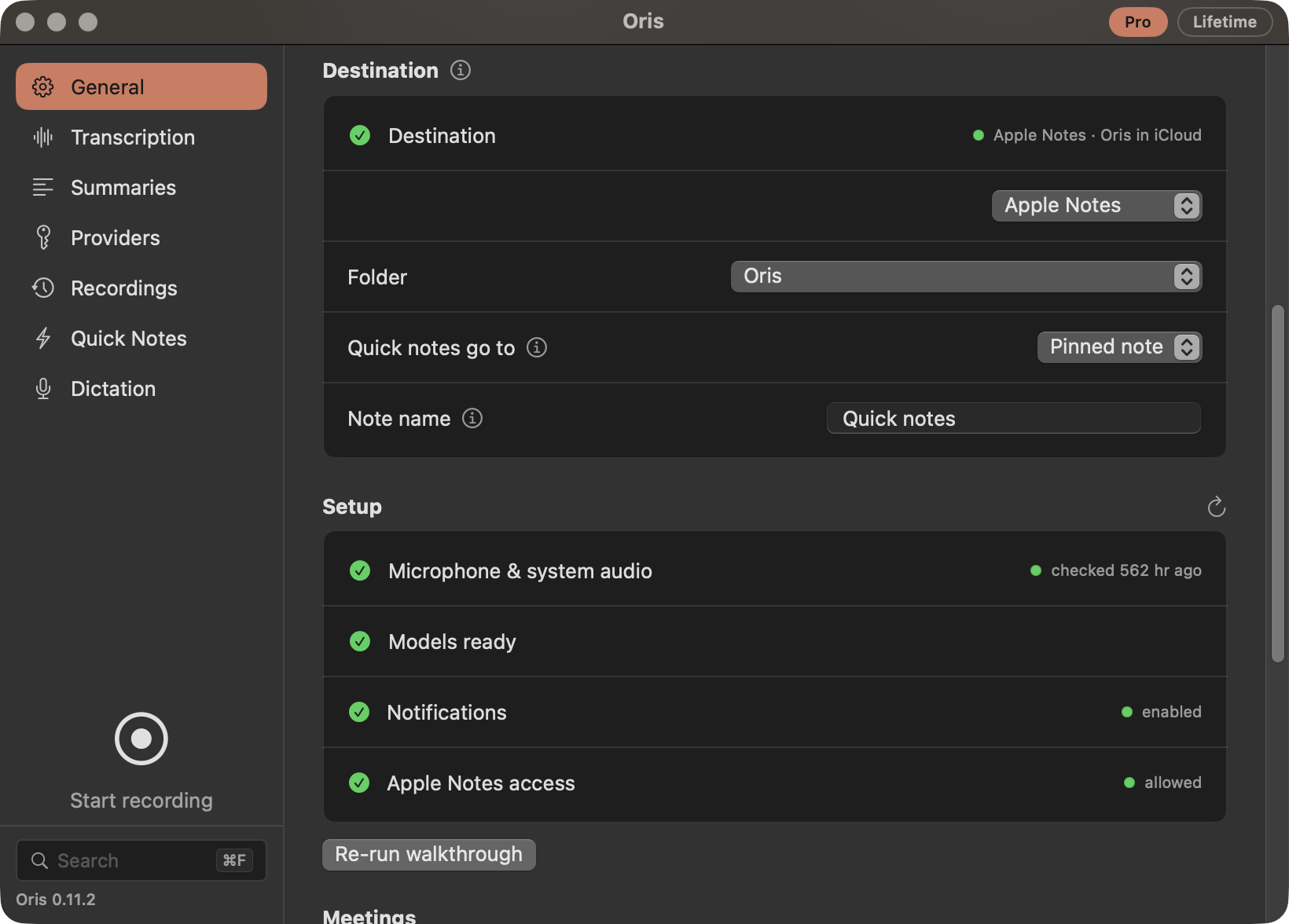
The General section has its own Destination section, above Setup: the kind and path when everything validates, or the specific problem when it doesn’t. The rail does not repeat the name — a healthy idle record button has nothing under it — but it does surface a problem before you record (a folder that moved, a vault that’s gone), not after a meeting has nowhere to land.
Changing your destination
Switching happens on the Destination row itself, and it applies as you choose. The dropdown there lists the three kinds; pick one and Oris shows whatever that kind still needs — Browse… for a vault, Choose folder… for a Markdown folder, Set up Apple Notes for Notes, plus its own rows for the naming choices — and the moment that choice is complete it is your destination. There is no confirm step: the Destination row above changing to the new destination is the confirmation. Typed fields, like a file-name pattern or a note name, apply when you press Return or click away rather than on every keystroke.
If Oris can’t make the switch right then — a delivery still in flight, say — the dropdown snaps back to your current destination and says why on the row. Nothing half-configured is ever written: a kind you’ve picked but not finished setting up just sits there showing its button until you finish it.
A few things about a switch are handled for you rather than asked about:
- Any notes already queued for your old destination keep going there. The switch itself never drops, redirects, or duplicates them — the Destination section says how many are still owed to the old destination, and Recordings shows what’s outstanding, with a way to send a stuck note to the new destination by hand instead; that action states its one honest risk (if the old delivery was already mid-flight, the note can land in both places).
- If your recordings folder moves as part of the switch, existing audio is left where it was rather than swept over automatically.
- Switching to an Obsidian vault installs the plugin into it; switching away from one means recordings started from the plugin land in the new destination instead of that vault.
- Quick notes follow the same destination.
If a recording or an in-progress transcription is still running, the save is refused — “A recording is still being processed. Its note lands in your current destination. Try again in a moment.” — so an in-flight note keeps the destination it started with. The pick stays where you left it, and saving again is the retry.
Existing Obsidian setups
If you were already using Oris with a vault, nothing changes and there is nothing to redo: your vault carries over as the destination automatically on first launch after updating, recordings keep landing exactly where they always did, and the plugin flow with its markers, cursor insertion, and rename-following is untouched.
Recording into an open note
When you start recording, Oris writes a unique <!-- TRANSCRIPT_PENDING_<ts>_<pid> --> HTML comment at your cursor. It’s invisible in preview, and it’s how Oris finds the exact insertion point when the transcript is ready. So you can scroll, edit, open other notes, even quit Obsidian, and the transcript still lands where you were when you hit record.
Rename the note while the recording is running and it still lands correctly. Starting a meeting in an Untitled note and giving it a real name afterwards is a common enough habit that Oris looks for its marker across the vault rather than only where the note used to be. That holds even when a fresh Untitled note has since taken the old name: the marker, not the filename, is what identifies your note, so the transcript follows the marker to the renamed note and the new one is left alone.
If the marker itself is gone by the time transcription finishes, the transcript is appended to the end of the note. If Oris genuinely can’t find the note, because it was deleted or because the marker turns up in more than one place, the transcript lands in your vault’s inbox/ folder instead. See when the note can’t be found.
Markers are an Obsidian idea, so they need an Obsidian destination to mean anything. If you record from the plugin while your destination is a Markdown folder, the note lands there the way that destination always places one: a new file under your naming pattern, or the end of the single note you chose to append to. The marker in the note you were typing in stays where it is, an invisible comment you can delete whenever you notice it. The completion notification names the file that was actually written, so the transcript is never somewhere you have to go looking for.
When the note can’t be found
A simple rename is usually followed automatically, so the fallback fires less often than you might expect. See recording into an open note. But if Oris genuinely can’t work out where a transcript belongs, because the note was deleted between hitting record and transcription finishing, or because the spot it reserved now matches more than one note, it drops the result in your vault’s inbox/ folder as transcript-<timestamp>.md rather than failing the run. A macOS notification tells you it landed there instead of where you originally pointed it.
The folder is created on demand, so there is nothing to set up. A backlog building up in there usually means something upstream is worth fixing, but the work itself is never lost.
The inbox/ folder does one more job now: it’s where recordings started without Obsidian land by default when your destination is an Obsidian vault. There’s no cursor and no open note in that flow, so a fresh note in inbox/ is the designed landing, not a rescue. (A Markdown-folder destination has its own placement rules and no inbox/ involvement.)
Oris treats an inbox landing as a success, because it is one: the recording was transcribed, summarized and saved, just not into the note you were looking at. The notification says where it went rather than warning you that something broke, and the run is recorded as completed — which matters when you are scanning Recordings history, because a note in inbox/ is a note you still have and it should read that way.
A genuine failure to write anywhere is a different thing, and it now looks different too. If Oris cannot write the note at all — the file is read-only, the disk is full, your sync client has it locked — it holds the finished transcript in a durable queue rather than scattering a copy somewhere and hoping you find it. The notification tells you the transcript is safe and waiting, the Recordings section shows it under Awaiting delivery with a retry button, and the work lands in the note you actually wanted once the problem is cleared. Nothing gets duplicated on the way: a delivery that already succeeded is recognised and skipped instead of appending a second copy. See Deliveries and receipts.
How it works underneath
Recovering markers left behind by an interrupted run
If transcription is killed mid-flight, by a reboot, a force-quit, or a machine that ran out of memory, the <!-- TRANSCRIPT_PENDING_<ts>_<pid> --> marker is left sitting in your note with nothing to replace it. The audio is still there; only the step that turns it into a transcript didn’t finish.
Oris can find those orphans. It scans your vault for stranded markers and pairs each one with the recording it most likely belongs to, matching on when the marker was written against when the audio was recorded, within about a minute either way. A recording that is still being processed is not an orphan: while its transcription is running, or for the first ten minutes after it stopped, the scan leaves the marker alone, and the recovery command refuses to start a second run against it rather than racing the one already under way.
Run Oris: Scan for orphan recording markers from Obsidian’s command palette and it shows you what it found: how many stranded markers there are, how long the oldest has been sitting, and which notes they’re in. Scanning never changes anything by itself, which is deliberate, so a marker is never quietly overwritten while you’re still deciding what to do about it.
Actually recovering them is the second, separate step. Run Oris: Recover orphaned recordings from Obsidian’s command palette — the same command the notice points you to — and it lands the transcripts where they were always meant to go, right from inside Obsidian. It’s also smart about how. A marker whose transcript was already produced and saved (the pipeline finished, only the note write didn’t) is delivered from that saved copy: no re-transcription, no re-summarization, and no risk of a second version of the same meeting appearing anywhere. Only a recording that never got as far as a transcript is re-transcribed from its audio. A recording whose note actually landed already — say, in the inbox after a rename went wrong — is recognized and left alone, with the stale marker pointed out so you can delete it.
The frontmatter and metadata Oris writes
For a live recording, Oris leaves your note’s frontmatter alone. It writes at the spot it reserved when you hit record and touches nothing above or below. The transcript block opens with a ## 🎙️ Transcript heading and an _Audio: [[…]]_ wikilink, so the source recording is one click away for as long as you keep it, and the summary footer records which provider and model wrote the summary.
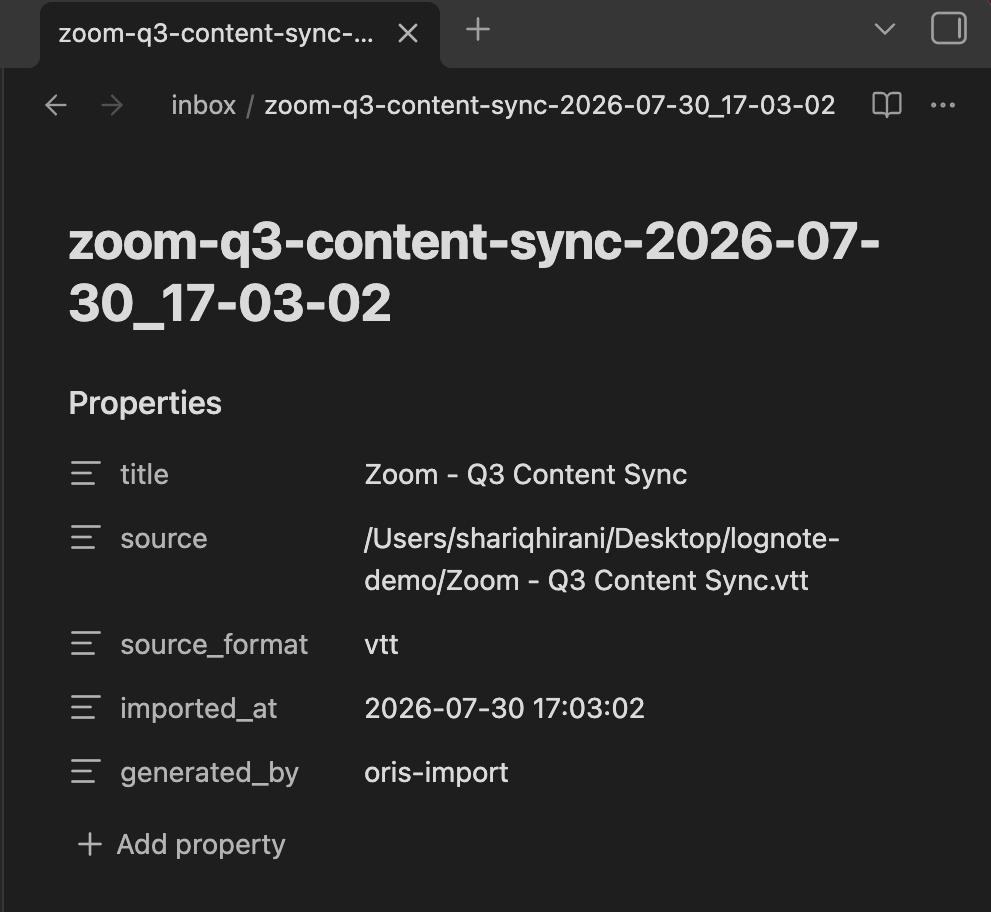
Imports are different, because there is often no note yet. When Import external transcript… or Import audio file… creates a note, that note gets YAML frontmatter at the top recording where it came from: title, source, source_format, imported_at, and generated_by. Skimming a folder of imports, that’s enough to tell at a glance which file each note traces back to and when you brought it in.
Choosing an existing note as the destination instead changes where that block lands. The same fields are written, but the import is appended to the end of the note rather than becoming page-top frontmatter. Obsidian only treats a --- block as frontmatter when it opens the file, so an appended import reads as a plain block of text rather than note properties.
The Obsidian plugin's own settings tab
The plugin’s own settings tab shows only the paths it detected, read-only, and a link to the Oris app for everything else. Recording, the mic ribbon, the status bar pill, and the retry command all work exactly as before.