Record & capture
Quick Note
updated
A global hotkey, a sentence spoken out loud, and the text lands where you told it to, without opening Obsidian or anything else.
Meetings are one kind of capture. The other is the thought you have between them, which is gone by the time you’ve found a window to type it into. Quick Note is that second path: press a hotkey anywhere on your Mac, say the thing, and the transcribed text lands in the destination you configured. Nothing has to have focus — the hotkey is global, and nothing has to be open either: closing the Oris window or pressing ⌘Q hides Oris, and it keeps running in the menu bar, hotkey and all. Quit Oris from the menu bar icon, or Quit on the Dock tile, is how you quit it, and quitting is the only thing that stops the hotkey. To get the window back, click Oris in the Dock or choose Open Oris from the menu bar icon.
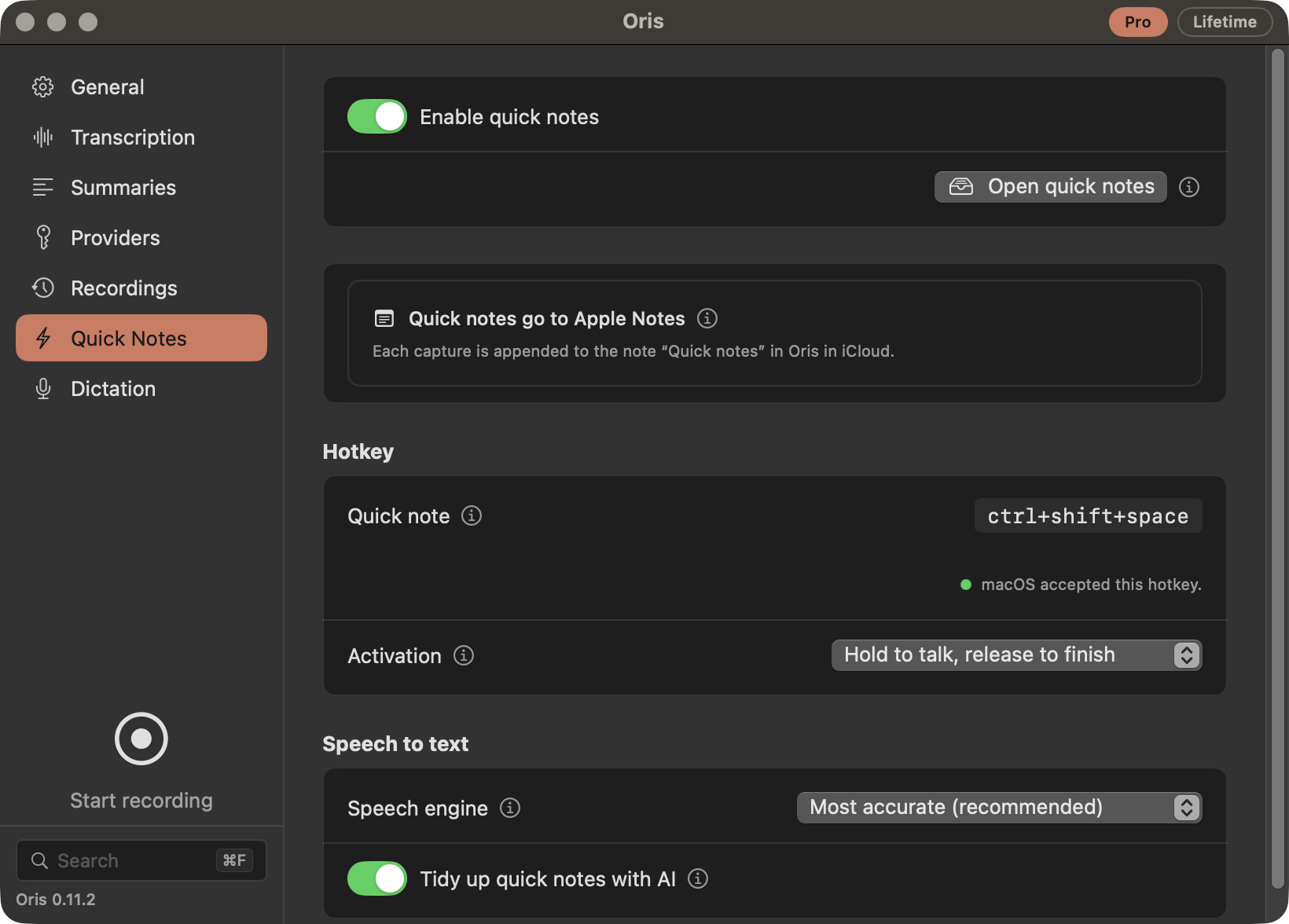
Where captures land depends on which destination you’re on, and the section only offers the choices that apply. On an Obsidian vault or a Markdown folder you pick between the in-app inbox, a pinned note, a daily note and a weekly note, and the note or folder field for the one you picked. On Apple Notes none of those apply — placement there is part of the destination itself (daily note or a pinned note, set under General → Destination), so the section says so and shows no second set of controls rather than two vocabularies for one decision.
The in-app inbox is always reachable, and that is deliberate: it’s a choice on a vault or folder destination, and it’s the safety net on every destination — a capture that can’t reach where it was going is kept there with the reason, rather than lost.
Quick Note lives on the Quick Notes section in the Oris app. A master switch there, Enable quick notes, turns the whole feature on or off. It’s read once when Oris launches, so flipping it shows “Saved. Relaunch Oris to apply.” until you quit and reopen the app. The hotkey is latched at launch the same way. Everything else is live: change the destination, the activation mode, the speech engine, or AI cleanup and your very next capture uses the new value.
The tab stays put either way. Switching off takes effect at the next launch just as switching on does, so until you quit and reopen, the hotkey is still registered and still captures. Once Oris has started up with it off, the tab says the hotkey isn’t listening and points out that quick notes you’ve already taken are still there to open — turning it back on is one switch and a relaunch away.
Speaking a note
The default hotkey is ⌃⇧Space. It’s registered system-wide, so it works from any app, and it needs no extra permission grant beyond the microphone access Oris already has. It is shown in the app but not editable there yet; the hotkeys you can record — the recording hotkey under General → Meetings, dictation’s, and a template’s — are all recorded the same way: one click on the field, press the combo, and a check mark confirms it took.
It shares its block on the Quick Notes section with one other combination: Start recording, which begins a meeting rather than a quick note. That one you set right there, and it’s described in recording a meeting.
If you swap the quick-note hotkey for something else, be aware that macOS claims a lot of combinations for itself, and it doesn’t announce it when it does: a reserved shortcut registers perfectly happily and the system then eats the keypress before Oris ever sees it. A hotkey that appears to do nothing is usually this rather than a bug. The Quick Notes section helps on both counts — it warns you when the hotkey you’ve configured is one macOS is known to own, and it shows whether the registration itself succeeded.
While you speak, a small panel sits in the top-right corner of the screen with a record dot, a running timer, and a level meter. It confirms Oris is hearing you without covering what you were doing. When you finish, the panel moves through “Transcribing…” and “Saving…”, then a short toast names where the note went. If the speech engine has to get its model ready first, the panel says so instead of looking frozen: “Preparing model…” while the model is being loaded, “Downloading speech model…” when it is genuinely fetching one for the first time, and “Waiting for another transcription…” when a meeting recording is already using the model and your note is queued behind it. Loading is usually quick, though it can take longer after a macOS update, when the model has to be rebuilt for your Mac. Whichever label you see, the panel is reporting what the engine is actually doing at that moment, so it appears for exactly as long as that work does and clears when your words start being transcribed.
Transcription for quick notes runs on your Mac, the same as it does for meetings.
Choosing the speech engine
Under Speech engine you choose what turns your voice into text. All three options run entirely on your Mac; what differs is the trade between accuracy and how quickly the note lands.
- Most accurate (recommended) — the default, and the same engine Oris uses for meeting recordings. It loads its model for each note, which Oris starts the moment you begin recording, so for a note of more than a few seconds most of that happens while you are still talking.
- Apple dictation (fastest, macOS 26+) — the dictation model built into recent macOS.
- Parakeet (fast, on-device) — a compact speech model Oris downloads the first time you use it.
Switching engines takes effect on your next quick note. There is nothing to relaunch, and you can compare two engines by switching between captures. The one exception is the note you are recording right now: it finishes on the engine it began with, so a change made mid-sentence applies to the note after it. The first note after a switch can take longer than the ones that follow, and what causes that differs by engine: Parakeet downloads its model the first time you use it, which depends on your connection; Apple dictation may need macOS to install a speech asset; the recommended engine is already on your Mac and only pays a brief warm-up. Whichever it is, Oris starts that work the moment you begin recording rather than waiting until you stop, so much of it happens while you are still talking. The recommended engine works this way for every note, not just the first after a switch: the model it needs is loaded during the recording, so what is left when you stop is the transcription itself. If another transcription is already running — a meeting recording being processed — Oris waits rather than loading a second copy of the model, and your note simply takes the slower route it always used to.
The recommended engine is the default for a reason worth knowing about: with some external microphones, the faster engines mis-hear badly. Some broadcast- and podcast-style USB microphones do their own processing (onboard DSP) before the audio ever reaches your Mac, and on those, the result is a signal the lighter models handle poorly — dropping or replacing words in a way that looks like an ordinary note rather than an error, at any input level. The recommended engine handled every microphone we tested, including those. If you use a built-in mic or AirPods and would rather have the note back a couple of seconds sooner, the faster engines are a reasonable trade; if you dictate through a podcast-style USB mic, stay on the recommended one.
Two ways to activate
Under Activation you pick how the hotkey behaves:
- Press to start, press again to stop (the default). Best for longer notes, since you’re free to gesture, scroll, or walk away from the keyboard while you talk.
- Hold to talk, release to finish. Hold the hotkey while you speak and let go when you’re done. A press too quick to be a real hold records nothing rather than starting a capture you didn’t want.
Hold mode is a strict superset of toggle: the key-down still starts a capture, so if a release is ever missed, pressing the hotkey again always finishes the note. It can’t get stuck.
In press-to-start mode a capture also stops by itself after 30 seconds of silence and lands as usual (hold to talk never does), and Stop after a stretch of silence under General → While you speak changes that time or turns it off, for dictation too.
Turning other audio down while you speak
Music or a video playing through your speakers bleeds into the microphone and into the transcript, and pausing it by hand before every note is exactly the kind of small ritual Quick Note exists to remove. So while a quick note is capturing, Oris turns your Mac’s output down to a quarter of where it was, fading it over a fraction of a second rather than cutting it, and fades it back up the moment you stop. The fade starts the moment you press, so it is mostly done by the time the microphone opens, and if the capture is refused or fails to start the level comes back promptly. It applies to quick notes and dictation only. A meeting recording never touches the volume, because the audio coming out of your speakers is often the very thing its system-audio track is recording.
Two rules keep it from getting in your way. If you change the volume yourself while a note is capturing, your change stands: Oris only puts the level back when it is still where Oris left it. And the original level is written down before anything moves, so if Oris were ever to crash mid-note, the next launch finds the record and restores your volume, provided it is still where Oris left it; a level you changed in the meantime is left alone, by the same rule. Outputs that don’t offer software volume control at all, which is the case for some USB DACs, HDMI and AirPlay, are simply left alone, and a device unplugged mid-note keeps its record for up to 90 days, so it is put right when it comes back.
It is on by default and lives under General → While you speak, as Turn down other audio while you speak — on the General section rather than this one because it governs dictation too, and a setting that covers both belongs where neither owns it. A change applies to your next capture, with no relaunch.
Where captures land
Quick notes go to the same destination your meetings do — an Obsidian vault, a Markdown folder, or Apple Notes — switched from the Destination section on the General section, not picked separately here. Quick note destination configures something narrower: what happens to each capture — kept in Oris’s own in-app inbox (the default), or written into that destination. For a vault or folder destination, four choices:
| Destination | What it does |
|---|---|
| In-app inbox (default) | The capture stays in Oris’s own quick-notes store. No vault setup needed, and nothing is written to your vault until you say so. |
| Pinned note | Appends to an existing note in your vault, at a vault-relative path you name (inbox/quick-notes.md, say). |
| Daily note | Appends to a per-day quick-notes file, created on first use. |
| Weekly note | The same, one file per ISO week. |
Daily and weekly notes live in a folder you choose (inbox by default) and are Oris’s own files (quick-2026-07-26.md, quick-2026-W30.md) rather than your Daily Notes plugin’s note. Each capture appends as one timestamped bullet, so a day’s file reads as a running list.
The stamp on that bullet matches the note it lands in. In the daily note it’s the time alone (- 10:09 …), because the date is already the note’s name. A pinned note and the weekly note collect captures across days, so there each bullet carries its capture date too (- 2026-08-10 10:09 …) — a month of appends stays readable history instead of a wall of bare times. The date is the day you spoke the note, even when a held capture is delivered later.
Two deliberate behaviors are worth knowing:
- A pinned note is never created for you. If the note you named isn’t there, Oris doesn’t guess, because a silent create would quietly hide a note you’d renamed or moved. The capture falls back to the in-app inbox instead.
- A misconfiguration never costs you a capture. Every destination problem (an unset vault, a missing pinned note, an unrecognized mode, a vault write that didn’t go through) falls back to the in-app inbox, and the toast tells you which one happened. If even that write fails (a full disk, a permissions problem), Oris says so rather than shrugging: the toast reads “Quick note not saved — audio kept”, stays on screen long enough to act on instead of dismissing itself after a few seconds, and names the audio file it kept so nothing is silently thrown away. Close it with the ✕ at its right-hand edge, or by clicking the message text (the path row underneath keeps its own Copy button), whenever you’re done with it; left alone it clears itself after ten minutes. Neither loses the file — Oris writes the kept path to its own log before the message ever appears. In the one case where that write can’t go through either, the message stays until you close it yourself, because it is then the only place the path exists. Audio kept this way ages out under the same Audio retention window as your recordings — unless you’ve set retention to keep audio forever, in which case Oris leaves it alone, though macOS may still clear its temporary files on its own schedule.
While a vault destination is configured, the settings tab shows “Next capture lands in …” with the actual path, computed the same way the real capture computes it. With an Apple Notes destination none of these file choices applies — quick notes go to Notes — so the Quick Notes section says that instead of showing them: it names the folder and the note your captures append to, and the vault fields stay out of the way until you switch back to a file destination.
With an Apple Notes destination, captures go to Notes, and the shapes above change. The sink is a note in Notes rather than a file, so what you get is a note per day (Quick notes — <date>, created as Oris needs it) or one note you name, created the first time you use it. The same stamp rule applies there: the per-day note keeps time-only bullets, and the single named note dates each one. The file choices on the Quick Notes section, including the “Next capture lands in …” preview they feed, stay configured but don’t act while Apple Notes is the destination; switch back to a vault or folder (from the Destination section on the General section) and they take over again. A capture whose delivery to Notes doesn’t complete is saved to the in-app inbox rather than lost, and what happens next depends on how far the delivery got; the Apple Notes page walks through both cases.
A stuck delivery announces itself. When something can’t be delivered and ends up waiting — a quick note, or any other capture — the Recordings section’s label carries the count, and when the queue goes from empty to non-empty — and stays that way for the half-minute grace described below — Oris also posts one macOS notification: “Note not delivered”, with “Oris kept it. Click to open Recordings.” under it. Clicking it brings you to the Recordings section in Oris, which holds the Awaiting delivery queue. It’s one banner per incident, not one per capture: three captures failing in a row get a single notification, and you won’t be re-notified on every launch about a queue you’ve already been told about. That grace period exists because a queued delivery Oris is about to finish on its own — the normal state right after you open the app with an Apple Notes destination — isn’t stuck at all, and most of those drain quietly before the banner would fire.
The in-app viewer
Quick Notes → Open quick notes opens the Quick notes window: the captures Oris is holding listed down the left, grouped by day (Today, Yesterday, then dates), and the selected capture’s full text on the right. It lists the ones kept in the in-app inbox — a quick note you routed straight to a vault note went to your vault, and one delivered straight to Apple Notes went to Notes, so those live there and not here. (A held capture that Oris later re-delivered on its own stays listed here too — but it flips to sent the moment that delivery lands, so the list never claims a delivered capture is still waiting.) It updates live, so a note you speak while the window is open appears on its own.
Four actions sit above the text:
- Send to vault, Send to folder, or Send to Notes — named for whichever destination you’ve configured — sends the capture on (⌘↩). With an Obsidian vault or a Markdown folder it writes the capture in, following whichever placement you’ve configured (pinned, daily, or weekly). The in-app inbox isn’t a vault or folder location, so if that’s your setting, sends go to today’s daily quick note instead. Once it lands, the button becomes Open in Obsidian and takes you straight to the note. With an Apple Notes destination the button reads Send to Notes; sending appends the capture to Notes rather than writing a file, and once it has landed there the button becomes Open in Apple Notes — one click and Notes comes forward on the exact note it went to, whether you sent it yourself or Oris finished a queued delivery on its own. A capture delivered by an older version of Oris didn’t record which note it landed in, so it reads Sent to Apple Notes without offering the open. A held capture whose failure happened after Oris had already reached Notes is queued and retried on its own, and when that retry lands the capture flips to sent here by itself — the button stops offering a re-send, so a capture that already landed can’t be appended a second time by accident. The other order is covered too: when you press Send and it lands, the queued delivery that capture had been waiting on is retired at that moment rather than left to fire later, so a capture you sent by hand never has a second copy appended behind your back. That holds however many sends failed before one worked — every attempt still waiting is cleared by the one that lands. It holds in the other direction too: when a queued delivery finishes on its own, the other attempts Oris can still tie to that capture are cleared with it, so in the ordinary case there is nothing left over to append the note again afterwards. The exceptions are narrow and worth naming: an attempt Oris can no longer tie to a capture, one whose clearing didn’t take, and one the queue had already picked up in the moment the other landed. Mark delivered… in the Recordings section clears whichever of those you are left with.
- Copy — the capture’s full text to the clipboard (⇧⌘C). The text in the pane is selectable too, so ⌘C still copies just what you highlighted.
- Reveal — shows the underlying file in Finder (⇧⌘R).
- Delete — removes the capture from Oris (⌘⌫), after a confirmation that’s explicit about whether a copy already went to your vault. Deleting here never touches the vault copy.
Sending doesn’t remove the in-app copy: the capture stays listed, marked as sent, and the note at your destination is a separate document from that point on.
Sending is how a capture turns into something you work with. This window’s job is to show you what you said and get it where it belongs; once a capture lands in Obsidian or a Markdown folder it’s an ordinary Markdown note, and reshaping it, filing it, linking it, or folding it into something longer all happen there, in the editor you already use. With an Apple Notes destination the landing spot is Notes, and the same work happens there.
Optional AI cleanup
Tidy up quick notes with AI is off by default. Turned on, it adds punctuation and capitalization and drops filler words before the note lands, so a dictated thought reads like writing rather than a transcript. It uses the same provider settings as your summaries, which means on-device by default — and, if you’ve pointed Oris at a provider that isn’t on this Mac, the note’s text goes there the way a summary would. That’s a cloud provider, or a self-hosted Ollama endpoint running on another machine. That adds a step between “Transcribing…” and the note landing: a second or two on-device with a warm model, longer on a cold one or over the network with an off-device provider. There’s a ceiling on how long it will wait, and passing it just files the plain transcript.
The reason it’s safe to turn on isn’t that a model is trusted, it’s that its output has to earn its place. Dropping “um” is the job, so the check isn’t “did any word disappear”, it’s “is this still the same note”. Before a cleaned version replaces your capture, Oris compares it against the raw transcript and rejects it for content that went missing beyond the filler, wording that was never dictated, or output that drifted into summarizing rather than tidying. Negations and numbers get the strictest treatment of all: they’re checked in place, so one that quietly moves to another clause is rejected outright.
This is a deliberately conservative check rather than a proof. It’s tuned to reject anything suspicious, because a rejection costs you nothing: you get the raw transcript, which is the floor the feature promises. Two things it can’t do, both worth knowing. It can’t certify that an accepted note is word-perfect, since a long capture carries a little tolerance for the ordinary substitutions that come with tidying. And it compares against the transcript rather than against your speech, so a word the recognizer misheard is a word the check will happily preserve. Read a note you’re relying on, the way you would any other. If that trade isn’t one you want, leave the setting off and nothing stands between the transcript and your note. Cleanup that fails, times out, or can’t run lands the raw text the same way.
Very long captures skip cleanup and land raw. It’s a tidy-up pass for a spoken thought, not a rewrite engine for a monologue.
Meetings win
A meeting recording and a quick note both want the microphone, so they can’t overlap, and the tie always breaks the same way: the meeting wins.
Start a meeting recording while a quick note is in flight and the quick note is cancelled. Oris notices within about a second, whichever activation mode you’re on, and the panel says what happened: “Quick note cancelled,” with a line naming the reason, which is that a meeting recording started. Nothing is filed. The meeting recorder starts once the quick note’s recorder has stopped, so the handoff takes a moment and a sentence spoken across it may not land in either recording.
Discarding it is the deliberate part. You didn’t choose to end the note where the meeting cut in, so half of a sentence saved as an ordinary quick note would read exactly like one you meant to stop there, and you’d have no way to tell the difference later. A cancelled note you were told about is the better of the two.
A recording that stops for some other reason (the recorder crashed, or something outside Oris killed it) is treated differently, because nothing else is competing for that audio. The panel says “Recording stopped — audio kept”, stays on screen long enough to act on rather than dismissing itself after a few seconds, and names the folder holding what was captured, the same way every other kept-audio message does — including being closable with its ✕ the moment you’re done reading it.
Going the other way, pressing the hotkey to start a new quick note while a meeting is recording is refused with “Meeting recording in progress.” Stop the meeting first.
Changing the hotkey
Every Quick Note setting is a control on the Quick Notes section, with one exception: the hotkey itself is shown read-only while the control for changing it in the app is still being built. Until then, the Quick Notes section tells you what to do if you need a different combination, naming the setting to change (ORIS_QUICKNOTE_HOTKEY) in the message itself. A hotkey needs at least one modifier, so a bare key can’t quietly take over a system-wide shortcut, and it takes effect after a relaunch because it is registered once when Oris launches.
A combination Oris can’t make sense of never leaves you with a dead feature. It falls back to the default and the Quick Notes section shows a warning naming what it couldn’t read.
How it works underneath
Every control on the Quick Notes section
The Quick Notes section holds Quick Note. It stays present whether or not capture is running, so the master switch and your captures are always reachable. Two of these settings are read when Oris launches — the master switch and the hotkey — while destination, activation, the speech engine and cleanup are re-read for every capture and apply immediately.
- Enable quick notes — the master switch. Because it is read at launch, flipping it shows “Saved. Relaunch Oris to apply.” until you restart the app. While capture is off, the tab says so and points out that quick notes you have already taken are still openable below.
- Open quick notes — opens the two-pane quick-notes reader, with captures by day on the left, the selected capture on the right, and the send control (Send to vault / Send to folder / Send to Notes, named for your destination), Copy, Reveal and Delete above the text.
- Quick notes go to — the in-app inbox (the default), a pinned note at a vault path you name, a daily note, or a weekly note. Daily and weekly notes are created in a folder you choose. A live preview shows the exact path your next capture lands in when your notes go to a vault or folder. With an Apple Notes destination these file choices, the preview they feed included, stay configured but don’t act: the connector decides where captures land (a note per day, or one note you name; the Apple Notes page covers both shapes), and the file settings take effect again when you switch back to a vault or folder from the Destination section on the General section.
- Hotkey — the current combination, shown read-only, defaulting to ⌃⇧Space. A control for changing it in the app is coming. The tab warns you when the combination is one macOS is known to claim for itself, and it shows whether the registration succeeded.
- Activation — under Hotkey: press to start and press again to stop, which is the default, or hold to talk and release to finish.
- While you speak (on the General section, because it covers dictation as well) — Turn down other audio while you speak, on by default: your Mac’s output fades to a quarter while a quick note or dictation is capturing and comes back when it ends. Your own volume changes during a capture are left alone, and meetings are never affected.
- Speech engine — under Speech to text: which engine turns your voice into text. Most accurate (recommended) is the default and is the same engine Oris uses for meeting recordings, running the model chosen on the Transcription section. Apple dictation (fastest, macOS 26+) and Parakeet (fast, on-device) return a note sooner. All three run entirely on-device. A change applies to your next quick note, with no relaunch; a note already recording finishes on the engine it started with.
- Tidy up quick notes with AI — under Speech to text, off by default. It adds punctuation and casing and drops filler before the capture lands, using the same provider settings as your summaries.