Your notes
Recordings history
updated
Every recording and import in one place — when it happened, where the note landed, whether the summary succeeded, and what you can still do about it.
The Oris app’s Recordings section opens with your history. The last five recordings sit at the top as compact rows, and a “See all recordings…” button opens the full list in a sheet — scrollable, newest first, loaded in batches of 50 with a “Show more” footer so even a multi-year history stays snappy. Every recording and import appears (imports carry a small import badge, and the pieces of a split recording carry a split one), including runs that failed. The list updates live, and a recording is on it from the moment you stop, before its note has landed: see while a recording is being made. (When a transcript is saved but hasn’t landed in its note, an Awaiting delivery section also appears above the history; see Deliveries and receipts.)
Finding one recording
Once there’s real history behind you, scrolling isn’t a way to find anything. The sheet has a search field and a status filter above the list, and ⌘F puts the cursor in the search field — the same shortcut, printed on the field the same way, as the settings search in the app’s rail. Whichever of the two is in front of you is the one ⌘F means.
Typing narrows the list as you go, matching the note’s name, its full path — so a folder name pulls up every recording that landed under it — and, for imports, the word import. Matching ignores case. The status filter is three segments: All, Failed summary (the runs whose summary didn’t land; their menus offer Retry summary for as long as the recording’s files are kept), and Imports (both text and audio imports). The two combine, so “the failed summaries from my Acme folder” is one search plus one click. While the Failed summary segment has rows, a Retry all failed button appears at the top of the sheet, next to Close, and retries every listed row one at a time, with a running count — the same loop the Obsidian command runs, for everyone without the plugin.
Narrowing resets the list to its first page, so a filtered result is never buried behind a Show more you already clicked.
What a row shows
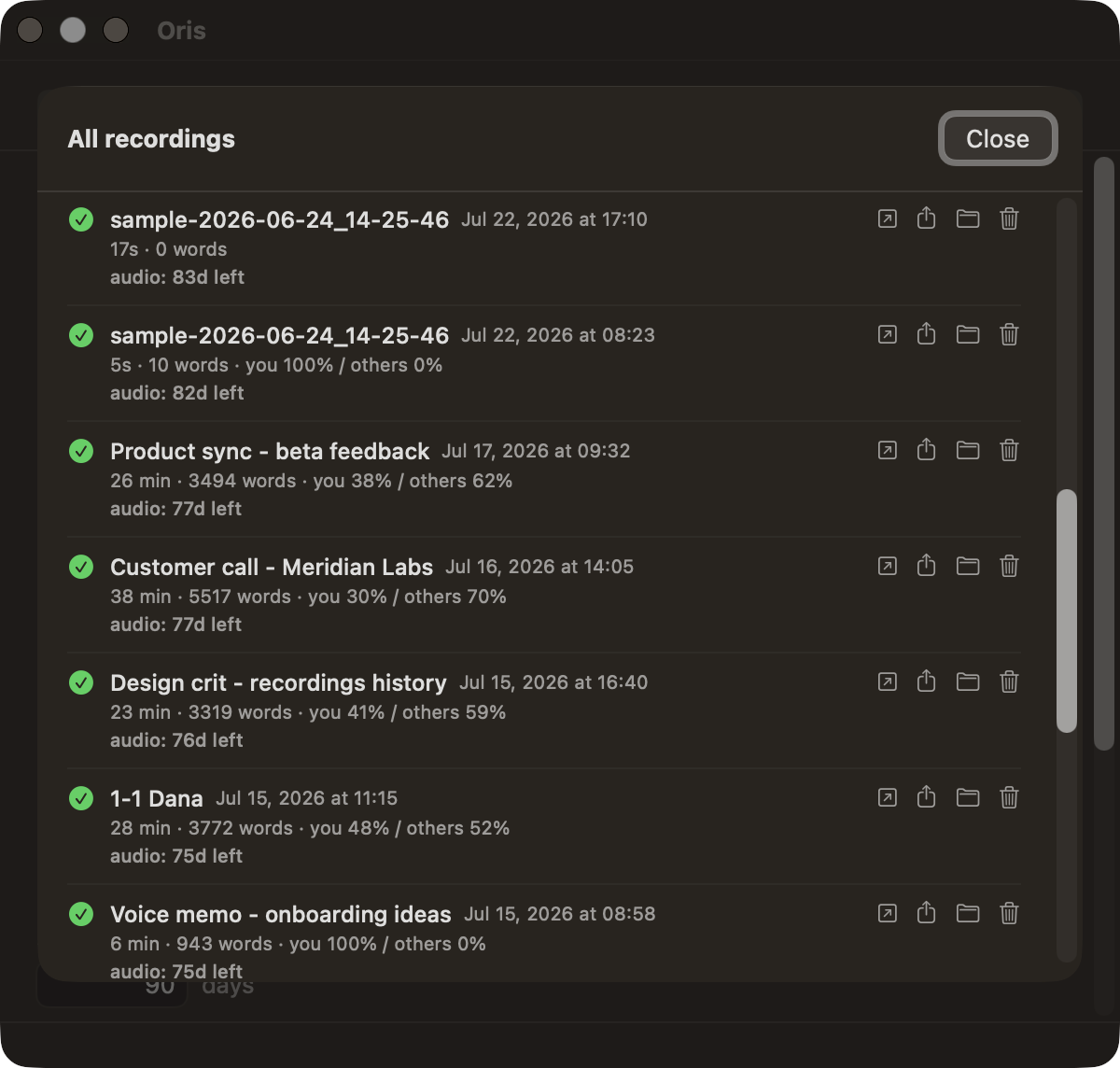
- The note and when — the landed note’s name (or “(no note)” when Oris doesn’t know where it went) plus the date and time of the recording.
- Mini-stats — a one-line caption like
12 min · 1,840 words · you 38% / others 62%. The talk split comes from the same two-track capture behind the Your Oris talk-ratio, and is omitted for single-track audio. - Status at a glance — a green check for a clean run, an orange warning when the transcript landed but the summary failed, and a failure mark when the run itself failed.
- Structured badge — a recording that ran with structured notes in play carries a small
structuredbadge. Hover it and the tooltip says what happened on that run: how many decisions and action items were extracted, that extraction ran and found nothing to extract (or that no candidate survived the grounding checks), that it failed (including the pinned-below-floor case where this row is the only record, since the note deliberately carries no notice), or that it was skipped and why. - Delivery status — when a transcript was produced but couldn’t be written into your note, the row says so in plain words: “delivery failed (permission); the transcript is saved, not yet in the note”. The work is held in the outbox; nothing is lost. A delivery that is simply still running is not a failure and doesn’t read like one: a recording on its way to Apple Notes keeps its in-progress row until the note is there (see while a recording is being made), and any other row whose note is still landing says “finishing delivery to Apple Notes…” in ordinary gray with no Retry delivery in its menu, and clears itself once the note is there.
- Audio countdown — how long the recording’s audio has left before retention cleanup takes it (“audio: 82d left”), or “audio pruned” once it’s gone.
While a recording is being made
A recording gets its row the moment you stop it, at the top of the recent list and of the sheet, wherever you started it from. Until the note is ready the row shows a small spinner and what is happening now: Transcribing… (with a percentage on a recording of two minutes or more), then Summarizing…. With an Apple Notes destination there is one more step, Delivering to Apple Notes…, and the row stays on it until the note is actually in Notes; if Oris can’t reach Notes for a while (the permission was switched off, say), the row waits there and the Awaiting delivery section above it says why. A recording started from the app or the menu bar has no note until delivery names it, so its row shows the audio file’s name and renames itself when the note has one. Show in Finder and Open log work from the first second and Open note as soon as the note exists, while Share… and Delete audio… stay grayed out in the row’s menu until the recording is finished.
When the note is ready, the same row turns into the finished recording in the same place, without jumping. A run that failed becomes an ordinary failed row, with its failure mark and Open log, and so does an Apple Notes delivery that Oris gives up on. Two recordings being made at once are two rows, each with its own stage.
A file you import from the app’s rail gets the same kind of row the moment you drop it, with the import badge and the file’s name. Several files waiting their turn each have a row that reads Queued until it starts.
The Recordings item in the rail carries one icon for all of this, so you can see it from any section: an ember dot that pulses slowly while something is being made, a green check once it’s done, and a warning triangle if a run failed. For an Apple Notes destination, done means the note is in Notes: the dot keeps pulsing while the delivery is still on its way. The check and the triangle stay until you open Recordings. While you’re on Recordings the item shows none of them, because the rows they point at are already in front of you.
Row actions
Each row shows one action at its right edge, Open note. Everything else is in the … menu beside it, and the same menu opens when you right-click anywhere on the row. It lists what you do with the note and its files first (Open note, Share…, Show in Finder, Open log), then what runs the work again (Split…, Re-summarize…, Retry summary, Retry delivery), and Delete audio… last, on its own. An action that doesn’t apply to a row isn’t in its menu at all, and one that applies but can’t run right now is grayed out. While one of them is running, the row’s status line says which, with a small spinner: Retrying summary…, Re-summarizing…, Retrying delivery…, or the piece a split is on.
- Open note — opens the landed note where it lives: Obsidian for a vault note, your default Markdown editor for a note delivered to a folder destination, and Notes itself for a note delivered to Apple Notes. The row asks the delivery receipt where the note went, so the right app opens for each kind.
- Share… — the standard macOS share sheet, with the note’s Markdown file attached. A note delivered to Apple Notes has no file on disk to attach, so on that row the item reads Open in Apple Notes to share and opens the note in Notes, where you share it.
- Show in Finder — selects the recording’s
.m4ain Finder. - Open log — on every row, opens a sheet with just that recording’s lines from Oris’s
transcribe.log— matched on its marker, its audio file’s name and its note — with the warnings tinted, a Copy button for a support email, and Open full log for the whole file. Only the last 8 MB of the log is searched, so opening it is instant however long you’ve used Oris; the sheet says so when older lines exist. Every place the app used to say “check transcribe.log” now offers this instead. - Split… — on any finished recording whose audio and transcript are still on disk and that holds more than one sentence. It opens a sheet with a bar of the recording above its transcript, with the points Oris found already marked on both; switch them on or off, add your own cut by clicking the bar or the gap between two sentences, then press Split into N. While it runs, the row’s status line says which piece is being summarized. Each piece becomes its own note and its own row, with its own summary and title, and the original row says it was split. An Obsidian original can be archived with a box the sheet ticks for you when the note holds only that recording, while an Apple Notes or folder original stays where it is. See Splitting one recording into several notes.
- Re-summarize… — appears on any recording whose summary landed and whose audio and transcript are still on disk. It opens a small sheet with one field: type what you want different — added context (“attendees were Priya and Sam”), a tone, or a focus (“stay on the pricing discussion”) — and press Re-summarize. Oris re-runs the summary for that one recording and replaces the summary block in your note in place; with structured notes on, the rewritten block keeps its extracted Decisions and Action Items. The transcript is never touched and never regenerated. With Oris Pro the sheet also offers a template picker, so one re-run can try a different note template without changing your standing setup. Leave the picker alone — or go without Pro — and the re-run is shaped by whatever your setup resolves to now: the destination’s template override, then your default, then the standard summary. That is the same ladder a new recording to that destination would take, so it can differ from the shape the note originally landed with if you have since changed a template, or if that recording was started from a template shortcut. While it runs the row reads Re-summarizing…, and if the re-run fails, your existing summary is left exactly as it is and the row says so.
- Retry summary — appears when a recording’s summary failed and there’s still enough kept to retry it. It re-summarizes just that recording, through the same loop every other retry uses; the row reads Retrying summary… while it runs and heals to a green check on success. If the retry can’t run or doesn’t land — for example the recording’s files belong to a vault Oris no longer points at, or the note’s transcript block can’t be found — the row says so in a line under the recording with an Open log link beside it that shows that recording’s lines from
transcribe.log; nothing in your note is changed. - Retry delivery — appears when the transcript is saved but never landed in the note. It delivers the saved copy, with no re-transcription, no re-summarization, and never a duplicate, and the row reads Retrying delivery… meanwhile. The one exception is a delivery whose outcome Oris genuinely can’t determine: there the row asks you to check the note instead of offering an action that could land it twice.
- Delete audio… — removes the audio and its working files ahead of the retention sweep, after a confirmation that spells out what goes: the audio, the files that go with it, and the ability to retry that summary. The note itself always stays. Only a recording has it: an imported file is yours, and Oris never deletes a file it didn’t create. A piece of a split recording shares the original’s audio, so Delete is offered on the original’s row, not on the piece’s. It’s grayed out while a retry, a re-summarize or a split is running on that recording.
Actions gray themselves out when they no longer apply. A note that’s been moved or deleted disables Open note and Share…, pruned audio disables the audio actions, and a summary failure whose recording has since been cleaned up shows the warning with “retry no longer available”.
Re-summarize follows the same rule, and it is worth knowing where its edge is. Re-summarizing re-reads the recording’s saved transcript rather than listening to the audio again, and audio retention removes that saved transcript along with the audio — so once a recording has been swept, its note keeps the summary it has and Re-summarize is no longer offered for it. It also stands down on the two rows where it would have nothing to work on: a row whose summary failed (that row’s action is Retry summary), and a note delivered to Apple Notes, which has no Markdown file for Oris to patch.
Where the history comes from
The history is read from the same local usage ledger that powers the Your Oris stats card — a plain append-only file on your Mac that now also records where each note landed and which audio file produced it. The ledger itself never leaves your Mac: it is never transmitted, and the feedback composer’s diagnostics don’t include it. Sharing a note from a row is always an explicit action you take, never something Oris does on its own — the same is true of Copy My Usage Summary in the app’s Help menu: it puts a content-free counts summary (meetings, quick notes, imports, retries — never a path or a title) on your clipboard and opens a prefilled email draft, and only when you ask. The completion notification got the same upgrade: when a recording lands, the banner now ends with that recording’s mini-stats line.
Rows from before this release show stats only: older ledger lines don’t carry note or audio paths, so they render without a note link or audio actions. Oris doesn’t guess or backfill.
Your Oris
The Oris app’s General section carries a Your Oris card: a small set of stats about how you’ve used the app. It’s there to glance at, not to act on. There are no buttons, no goals, no nudges — just numbers that add up as you record.
Everything on the card is computed on your Mac from a local usage ledger. Nothing about it leaves the device, and Oris never phones home to assemble it. This is consistent with Oris’s promise that it never sends your audio anywhere: the stats are derived from your own recordings, on your own machine.
What’s on the card
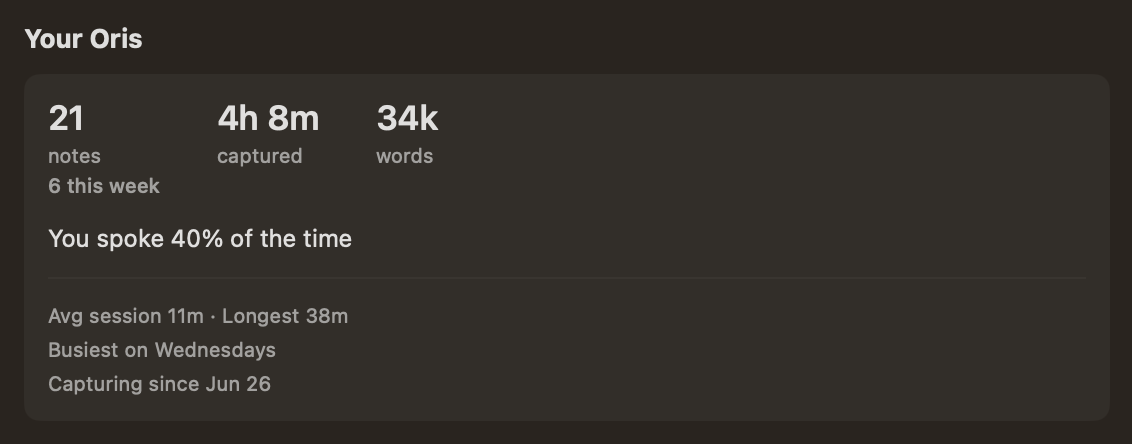
- Notes recorded — all-time, plus a this-week count.
- Total time captured — the summed length of every recording.
- Words captured — the running word count across your transcripts.
- Talk-ratio — “you spoke X% of the time.” Because Oris records your mic and the system audio as two separate tracks, it already knows your share of each conversation versus everyone else’s. It’s an observation, not a score.
- Average session length and longest session — the typical recording, and your single longest one.
- Busiest day of the week — a plain observation of when you capture most (for example, “you capture most on Tuesdays”).
- Streak — your current and best run of days with at least one recording. It’s shown for interest only; the card never frames it as something to maintain or warns you about losing it.
- Capturing since — the date your first recording landed under this build.
- Feature usage — a small footer of counts below a divider: a line like
14 meetings (13 ok) · 6 quick notes · 2 imports · 1 retry(each part appears only once you’ve used that feature), how many runs structured notes landed on, your configured destination kinds, and a quiet “Setup complete” once onboarding is done. Same posture as the rest of the card: counts to glance at, nothing to act on.
A few honest notes
The card starts fresh from this release. It doesn’t backfill recordings you made before it shipped, so the numbers grow from here rather than reflecting your whole history with Oris.
There’s no “time saved” or productivity figure. Oris doesn’t estimate what typing the same notes would have cost you, because any such number would be made up. The card sticks to what it can actually count.
The talk-ratio is the one stat most tools can’t show, and it falls out of the two-track capture for free — no extra processing, no upload, no separate model. It’s a small reflection of how your meetings actually go.