Your notes
Summaries and providers
updated
Which model writes your summary is a choice: on-device by default, a cloud key or your own Ollama server if you'd rather, and no summary at all if you don't want one.
Setting Settings → Providers → Provider to Auto, which is the default, means Oris tries the providers in order and summarizes with the first one that’s configured. The order it starts with is OpenAI, Anthropic, Azure OpenAI, Ollama, On this Mac. A provider counts as ready only when everything it needs is filled in: a key for OpenAI or Anthropic, the endpoint, key and deployment together for Azure, and for Ollama a reachable server that actually has a model installed. In that default order On this Mac sits last — the guaranteed last resort — so Auto falls back to it even when nothing else is set up: Oris would rather run the on-device path and tell you if it failed than report that no provider was available.
The order reflects a simple bet. If you have paid for a cloud key you probably want it used, a local Ollama server is quicker than spinning up the on-device model, and the on-device model is the always-available free fallback that needs no account at all.
You can override the auto-pick at any time by choosing a specific provider in the same dropdown. An explicit choice is always honored, and the fallback order stops applying the moment you make one.
Turning providers on, and putting them in order
With Provider set to Auto, the Providers section is a single list — one row per provider, carrying a switch, its name, whether it’s configured, and a handle on the right. The switch is what decides whether Oris may use that provider at all, and the order of the rows that are switched on is the order it tries them in.
Turn a provider off and it drops out of the order and sinks below the ones that are on, so the list always reads top to bottom as “what Oris will actually try”. Turn one on and it joins the bottom of that block; drag it by its handle to put it where you want. Only rows that are on can be dragged, because a provider that isn’t in play has no position to have. Every change saves as you make it, with no Save step. One provider always stays on — the last switch won’t turn off, since a list with nothing on it would mean the same thing as a list with everything on it.
A row that’s on also opens: click the chevron and that provider’s own settings appear underneath it — its key, its endpoint, its model, and its Test button. A row that’s off shows none of that, which is the point: you turn a provider on and then tell it who you are.
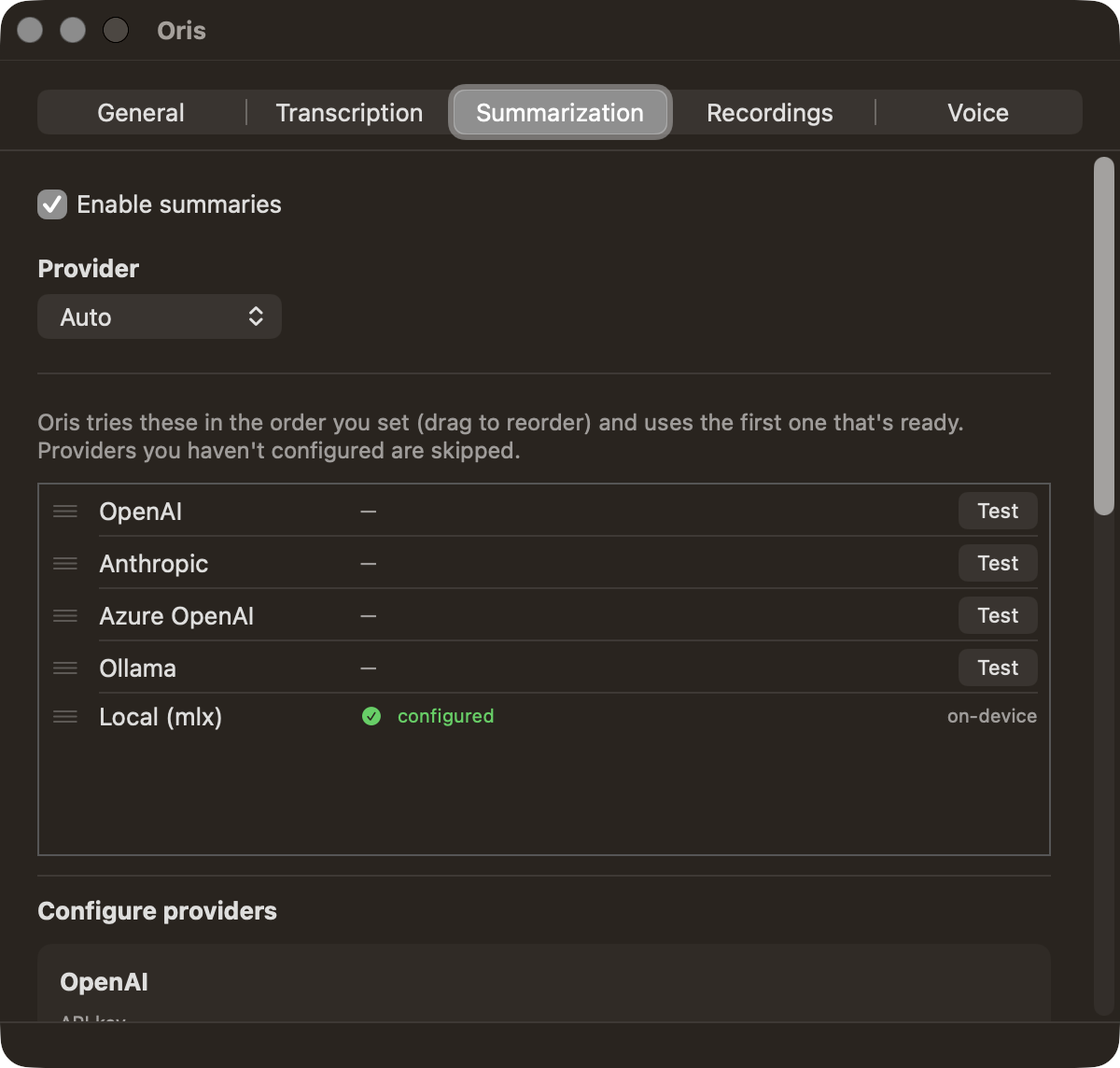
Leave the list alone and Oris uses the built-in order above.
Pick a specific provider instead of Auto and the list shows just that one, open, with its settings — there is no order left to set, so the switches and handles go away with it.
When Auto lands on the on-device provider, the model it uses scales to the length of the transcript, so a standup doesn’t pay for a model sized for a strategy session. Pinning one model instead is a single field: see pinning one local model.
On-device: On this Mac
On this Mac summarizes on your Mac, using Apple’s MLX framework. No API key, no cost, and your transcript text stays on the machine along with the audio. It’s what Oris uses out of the box, and what Auto falls back to when no other provider is configured.
The only time it touches the network is to fetch a model. Oris downloads the default one for you during setup, so your first summary doesn’t stall on it, and any larger model is fetched once, the first time something actually needs it. See preparing the model for what that looks like while it’s happening.
Which model runs is picked from the length of the transcript: a short one gets the small model, a long one gets a bigger one. That choice is also capped by what your Mac can actually hold, so a long meeting on a smaller machine gets the best model that fits rather than one that would swamp it, which is what keeps a big transcript on a small machine from being the reason a summary fails. It can still fail, the same as any provider; summaries are best-effort everywhere, and the transcript lands regardless. To pin one model and skip the switching entirely, see pinning one local model.
Cloud and network providers
If you already pay for a cloud model, Oris will use it. The three cloud backends are bring-your-own-key, billed to you by the provider you chose, with nothing proxied through a service of ours. Ollama is the fourth option and works differently: it is a server you run yourself, on this Mac or another one on your network, so there is no key and no bill. What they share is that only the transcript text is sent, and only where you pointed it. The audio itself is never sent to them either way.
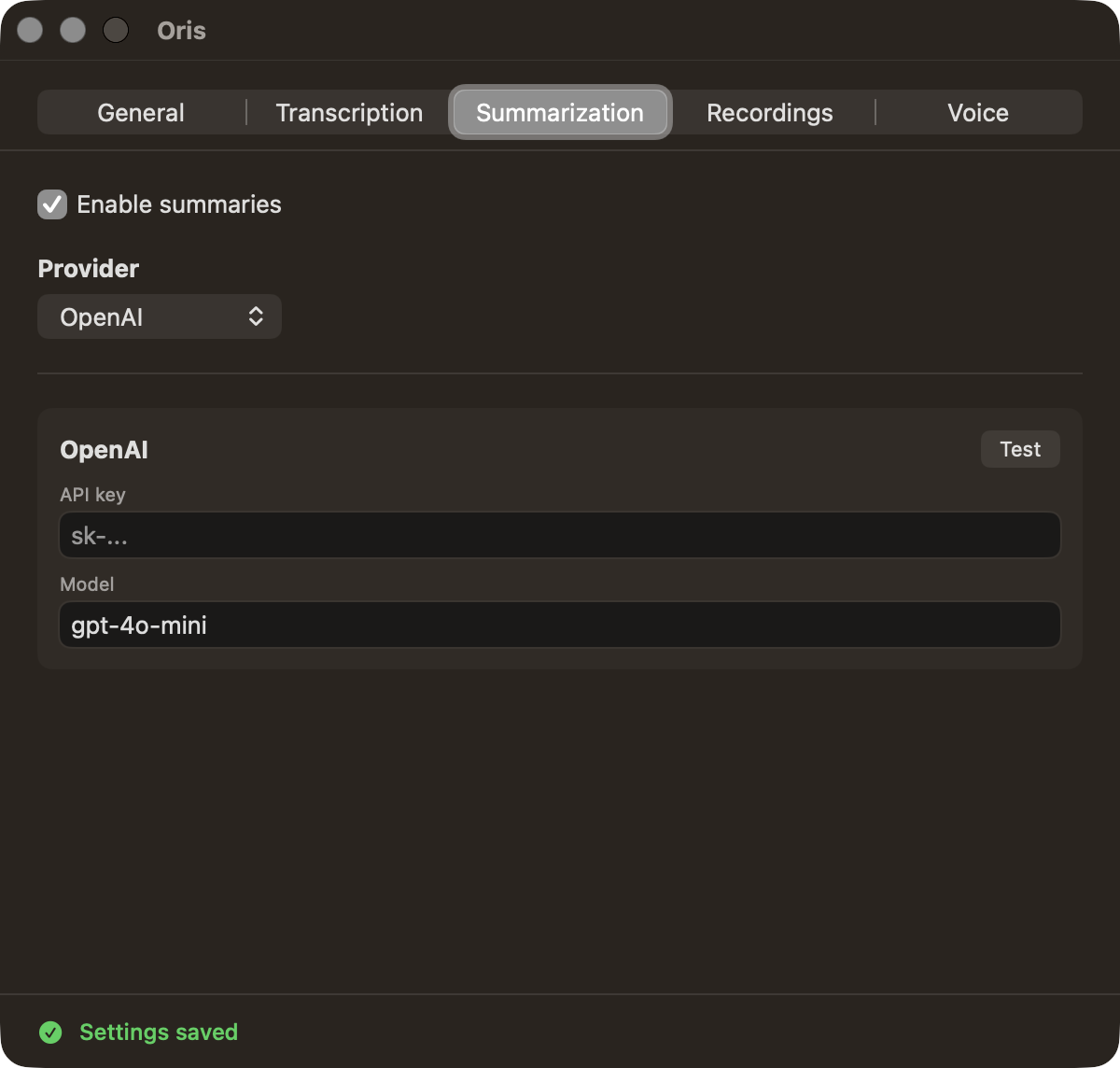
Pick the provider under Settings → Providers → Provider, and the Keys cards below it change to match:
-
OpenAI — an API key, and an optional Model. Leave the model blank and Oris uses a fast, inexpensive default (
gpt-4o-mini). This is the general-purpose choice. -
Anthropic — an API key, and an optional Model, defaulting to
claude-haiku-4-5. The best summaries we have measured, at slightly more latency. -
Azure OpenAI — an Endpoint, an API key, a Deployment name, and an optional API version. For anyone whose keys live in an Azure tenant.
-
Ollama — an Endpoint, pointing at
http://localhost:11434by default, and an optional Model. Leave the model blank and Oris uses the first model your Ollama server lists, so name one here if you care which.Models that think before they answer, such as Qwen3 or DeepSeek-R1, work too, though Ollama counts their thinking against the same room as the summary. When one spends all of that room thinking and writes nothing, Oris asks the same model once more with far more room, as long as enough of the same ten-minute limit is left, which makes that summary slower. If it still writes nothing, the warning in the note says why, for example that the model ran out of room while thinking, and a model that doesn’t think, or On this Mac, is the way round it.
Any of them changes which model writes the summary, not what the summary looks like. The shape is the same whichever backend runs: the same sections, the same transcript below it, the same footer naming what produced it. Which sections a summary asks for is its own choice, made once and applying to every backend alike — see Note templates.
Test connection
Each cloud or network provider gets a Test button in the header of its card under Keys — under Auto every card is there, and with a provider picked only its own. It takes the values currently in the form, before you have recorded anything, and makes one small live request that exercises the key, the model name and the endpoint together. You get back either Connected or a specific error naming the actual problem, along the lines of “Invalid API key (401)”, “Model not found” or “Endpoint unreachable”. It’s a couple of seconds, and it’s a far better way to find out a key is wrong than a meeting that comes back without a summary.
Pinning one local model
By default the on-device summarizer picks its model from the length of the transcript. To use one model for everything instead, pick one in the Model menu on the On this Mac card under Settings → Providers → Keys: Automatic (by transcript length), Llama 3.2 3B (fast, ~2 GB), Llama 3.1 8B (~5 GB), Qwen 2.5 14B (~8 GB), or Custom…, which opens a field for any other Hugging Face repo id in MLX format. The three named models are the same ones Automatic chooses between by length; picking one uses it for every recording. The card is there under Auto as well as when On this Mac is the picked provider, since Auto falls back to it. Automatic hands the choice back to Oris.
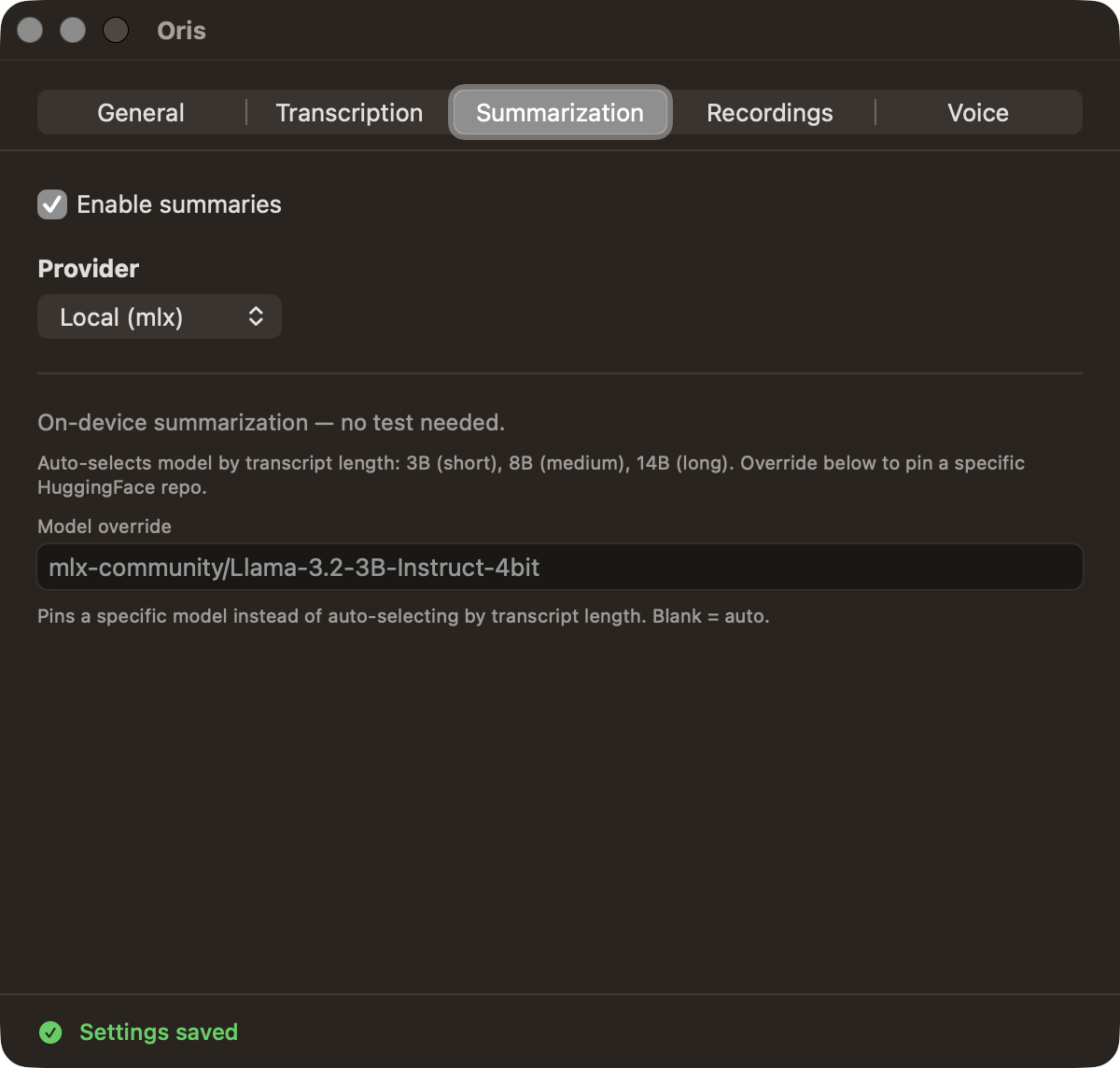
It’s worth pinning when you have benchmarked a particular model and want output you can compare across meetings, when you have already downloaded something larger and would rather it were always used, or when you want to try a different model family and see how its summaries read.
Turning summaries off
Turn off Enable summaries under Settings → Summaries and Oris skips the model call altogether. The transcript still lands in your note, just as a plain section rather than a collapsed one with a summary above it.
People turn this off for good reasons: you already process transcripts somewhere else, you would rather read the conversation yourself for the kind of thing you record, you’re keeping cloud spend down, or an on-device summary takes longer on your machine than you want to wait. Switch it back on whenever you like, and the next recording gets a summary again. Nothing about the recordings you made in between changes.
When a summary fails
Summarization is best-effort. If the provider is unreachable, the key is wrong, or the model comes back empty, the transcript is inserted into your note exactly as it would have been, with a ⚠️ block where the summary should be. Oris keeps the failure, so nothing about that recording is lost while you go and fix the cause.
Fixing the cause usually means a corrected key or a switch to a different provider under Settings → Providers. Once that’s done, there are two ways to retry, and both run the same thing.
The Oris app’s recordings history offers Retry summary in the … menu of any row whose summary failed, for as long as the recording’s audio and transcript are kept. It re-summarizes just that recording, the row reads Retrying summary… while it works, and it settles into a green check when the summary lands.
Inside Obsidian, two commands cover the same loop without leaving the editor: Oris: Show failed summaries (no retry) lists what’s pending, and Oris: Retry failed summaries works through all of them and reports back.
The ⚠️ block in your note names the app first and Obsidian second. A recording made without Obsidian can land in the note of someone who doesn’t have Obsidian installed, so the app’s retry is the one route that always applies.
Either way, a retry reuses the transcript that already exists rather than re-transcribing the audio, so it takes as long as a summary and not as long as a meeting. On a file destination, an Obsidian vault or a Markdown folder, it then patches the original note in place, replacing the ⚠️ block with the real summary. A retry that fails again leaves the note untouched, ⚠️ block and all, and records the newer error against that recording instead. The note stays as it was, while the failure you see in the app’s history is always the most recent attempt.
An empty answer counts as one of those failures. A model that returns nothing, or nothing but blank space, has not written you a summary, so the retry reports itself as unsuccessful and your note keeps the ⚠️ block it already had — the block is the only thing telling you a summary is still missing, and what a later Retry summary replaces, so Oris would rather leave it in place than paint an empty summary over it. Retrying again, usually after switching provider, is the fix. One detail differs from the paragraph above: the provider reported no error of its own here, since it answered and the answer was simply empty, so the failure on record against that recording stays the last real error rather than being replaced. What the empty attempt did is in the message the retry prints and in the log.
If structured notes are on, a retry re-runs extraction too, under your settings at the moment you retry. That is usually what you want: retrying after turning the toggle on, or after switching to a provider that can serve it, gets you extracted Decisions and Action Items rather than a replay of the original run. The recordings history treats the retry as the newest word on that recording, so its structured result replaces the original run’s in the row’s badge.
An Apple Notes destination recovers differently, because patching a block inside a Notes note is not shipped yet. There, a successful retry delivers the fresh summary as its own note, titled Summary — <the original note's title>, in the same folder. The original note keeps its ⚠️ block as the pointer to where the summary went. Retrying again with the same summary doesn’t stack copies: the same content is recognized and lands once. Patching in place is planned.
A successful retry is also written down twice, each record with its own job: the note write lands through the delivery core and leaves a receipt naming the note it landed in, and the retry’s outcome is recorded against the recording itself, which is what heals the row in the recordings history to a green check.
When there was no note yet
A recording started without Obsidian has no note while it’s being summarized — the note is created afterwards, wherever your destination puts it. So when the summary fails on one of those, the failure Oris writes down doesn’t name a note, because at that moment there wasn’t one.
Retrying still finds it. Oris records where each recording’s note landed, and a retry with nothing else to go on asks the delivery core for that landing, then heals the note it actually created. You get the same result as any other retry: the ⚠️ block replaced on a file destination (or the sibling summary note created on Apple Notes), the sidecar cleared, a receipt written.
That landing record is kept for as long as the failure is. Oris normally keeps only the last twenty recordings’ run records, but it never clears one a pending failed summary still needs, so recording another twenty meetings before you get round to retrying doesn’t quietly cost you the recovery. The exemption ends on its own the moment it stops mattering: the retry succeeds, or the audio ages out under audio retention and takes the whole recovery with it.
If the landing can’t be worked out, because the record of it was lost to a crash or a cleared state directory, the retry reports the attempt as unsuccessful. It leaves the recovered summary in a file next to the audio so the work isn’t lost, and keeps the failure so Retry summary stays in the row’s menu. The rule throughout this loop: a retry counts as a success only when the text reached the note you’d open.
How it works underneath
Every control on the Summaries and Providers tabs
-
Enable summaries — turn this off to skip the summary step entirely. The transcript still lands in your note. See turning summaries off.
-
Decisions & action items — the structured notes toggle, right under Enable summaries: extracted, quote-grounded Decisions and Action Items instead of model prose. Part of Oris Pro; the ⓘ beside it says what it adds, and a line beneath it says so when this Mac can’t run the larger local model it wants. On the Providers section:
-
Provider — pick the backend: Auto, On this Mac, Ollama, OpenAI, Anthropic, or Azure OpenAI. The Keys cards below change to match the provider you selected, and values for all providers are kept, so switching back doesn’t lose them.
Under Keys, each provider gets its own card of labeled fields:
- OpenAI — API key, and an optional Model.
- Anthropic — API key, and an optional Model.
- Azure OpenAI — Endpoint, API key, Deployment, and an optional API version.
- Ollama — Endpoint, and an optional Model.
- On this Mac — no credentials, since it runs on your Mac. Its Model menu pins one of the three on-device models, or a custom repo id, instead of letting Oris pick by transcript length, and its row is in the list under Auto too. See pinning one local model.
Every cloud and network provider’s open row ends with a Test button. It checks the values currently in the form with a small live request that exercises the key, the model name, and the endpoint together, then shows either Connected or a specific error pointing at the exact problem. You find out a key is wrong in a second rather than after a meeting.
Fallback order
The list itself is the order: the providers whose switch is on, top to bottom. See Turning providers on, and putting them in order.
Note templates
Back on the Summaries section, Note templates decides the shape of the summary the provider writes: six built-in templates, a radio to pick your default, and Duplicate or New template to make your own with their own sections and style rules. The editor carries a Preview that runs a real summary against a sample transcript without touching a note, and a Template per destination disclosure gives a single destination a template of its own. Part of Oris Pro. See Note templates.